

User manual ver. 20250427
This document collects information regarding the safety, installation and use of the AURATON Box device.
SUPLA System Gateway
The AURATON Box is a modern gateway that enables full integration of all AURATON Smart devices with the SUPLA smart home management system. Users can control their devices directly via the SUPLA mobile app or the cloud.supla.org website, both from home and remotely. The AURATON Box is a key element in building a smart home, enabling full automation and remote management of heating, water, lighting, and other home functions. The app also works with voice assistants such as Alexa and Google Assistant.
 |
Internet connection via WiFi |
 |
Over The Air Device update from the phone app. |
 |
Two-way radio communication Two-way radio communication enabling both sending and receiving information (from other elements of the Auraton Smart set) by the device. |
 |
Remembering functions Remembering the functions last set via the application, which allows them to work even when the internet connection is unavailable. |
Description of AURATON Box
Remote Control and Automation
Using the free SUPLA app, you can control all AURATON Smart devices even when you're away from home. The app allows you to create device operation scenarios, set schedules for their on and off, and configure advanced scenes. This way, you can adapt your home's operation to your daily routine, regardless of your location.
Expand your system
You can expand your system at any time by adding additional devices from the AURATON Smart series, and using the app, your loved ones can also control your home.
Select the installation location of the AURATON Box gateway
The AURATON Box gateway communicates radio-controlled with other AURATON Smart devices and covers the area of a typical home. It has a greater range than standard Wi-Fi. To achieve the best possible performance (range), do not place the AURATON Box next to metal surfaces (e.g., radiators), water tanks (e.g., boilers), or reinforced load-bearing walls.
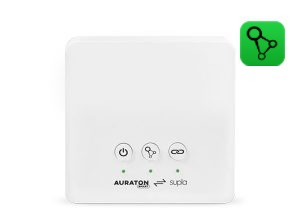
Default LED indication
| Power LED |
|
| Supla diode |
|
| Auraton diode |
|
How to start?
What will you need?
- AURATON Box (in packaging)
- USB power supply (included in the package)
- USB to USB C cable (included in the package)
- WiFi router with internet access
- Mains power socket (230 V) for AURATON Box
- A phone/tablet with Android/iOS and internet access.
Windows/MacOS/Linux computer is also available.
First start-up
- Connect the AURATON Box to the power supply using a USB-C cable. Plug the power supply into a power outlet to power the AURATON Box. Hold the power button – holding the power button turns the AURATON Box on or off. The power LED indicates that the AURATON Box is on.
- When connecting for the first time, the AURATON Box should be in configuration mode (the Supla LED should flash rapidly). If it's not, press the Supla button for 5 seconds to enter configuration mode. You can add the AURATON Box in the Supla app on your phone using the wizard available in the main menu under the "Add device" button. Then, follow the app's instructions. The AURATON Box gateway will create its own Wi-Fi network, which you can connect to and configure accordingly.
- You can use the AURATON Box gateway and connected devices from multiple smartphones or tablets. Simply add the gateway to your Supla account using one of them, and enter the same email address in your account settings for the others.
Factory reset
Q
The following procedure irreversibly deletes the entire gateway configuration and paired AURATON Smart devices.
To restore the factory settings of the AURATON Box, follow these steps:
- Hold the Supla button for 5 seconds and enter the AURATON Box into configuration mode.
- Then hold the Supla button again for 5 seconds which will cause a "Factory Reset".
- In Supla Cloud, remove the AURATON Box device.
Auraton Box gateway software update
For proper operation of the gateway, it is recommended to update its software to the latest version:
- In Supla Cloud, switch the gateway to configuration mode.
- Turn off "Mobile data" on your phone.
- Connect your phone to the Wi-Fi network advertised by the gateway (the network name is: AURATON-BOX).
- In your browser, enter the address: 192.168.4.1
- Go to "Additional settings" > "Firmware update", select "YES".
- Scroll down to the bottom of the page and click "Save & Restart".
Technical data
| Operating temperature range: | 0 – 45 °C |
| Operating status check: | LED diodes |
| Maximum number of paired devices: | up to 50 |
| Power supply: | USB-C 5VDC, 2W |
| Radio frequency: | 868.150 MHz 11 dBm ERP 868.450 MHz 11 dBm ERP 869.800 MHz 11 dBm ERP WiFi 2.4 GHz 15 dBm ERP, in accordance with IEEE 802.11 b/g/n |
| Radio receiver category: | 2 |
| Degree of protection: | IP20 |
| Range of action: | in a typical building, with standard wall construction – up to 30 m |
| Dimensions [mm]: | 100 x 100 x 29 |
Disposal of the device
O
Devices are marked with a crossed-out waste bin symbol. In accordance with European Directive 2012/19/EU and the Waste Electrical and Electronic Equipment Act, this marking indicates that this equipment, after its useful life, must not be disposed of with other household waste.
Users are obligated to dispose of it at a collection point for used electrical and electronic equipment.
LARS Andrzej Szymański hereby declares that the AURATON Box radio equipment type complies with Directives 2014/53/EU and 2011/65/EU. The full text of the EU declaration of conformity is available in the download section below.
Manufacturer's address and contact details:
LARS, ul. Świerkowa 14
64-320 Niepruszewo
www.auraton.pl