

User manual ver. 20250613
This document collects information on the safety, installation and use of the AURATON Roller Shutter device.
Safety information
P
Installation should be performed by qualified electricians, in accordance with national installation regulations. Before installing the device, please read this manual thoroughly. For safety reasons, do not install the device without a housing or with a damaged housing, as this poses a risk of electric shock.
Q
CAUTION!
Before starting installation, make sure that no dangerous voltage is present on the connecting cables.
Device description
The AURATON Roller Shutter is used to control devices equipped with a rotary drive with the ability to change direction and with adjustable speed locks in the form of limit switches. In practice, these include roller shutters and gates. The device should be connected according to the diagram. Both single and double bi-stable and mono-stable switches are supported. Control involves activating a relay and transferring a phase to the appropriate motor input. It allows for programming movement times in a given direction after calibrating the device (Note: The motor must be equipped with limit switches).
The device measures receiver parameters such as active power and total energy consumption. The AURATON Roller Shutter is equipped with a LED indicating the current operating status and a button for adding or removing the device from the SUPLA system (Fig. 1). The AURATON Roller Shutter is intended for indoor use only, for installation in junction boxes.
Device diagram
Fig. 1.
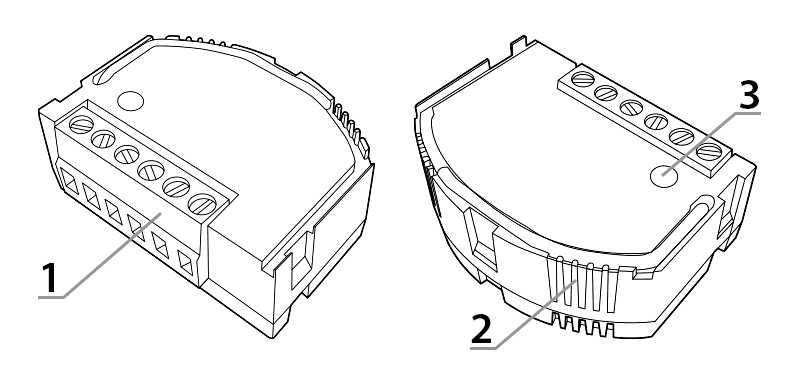
- Connection terminals
- Indicator diode
- Pairing/Removing Device from System Button
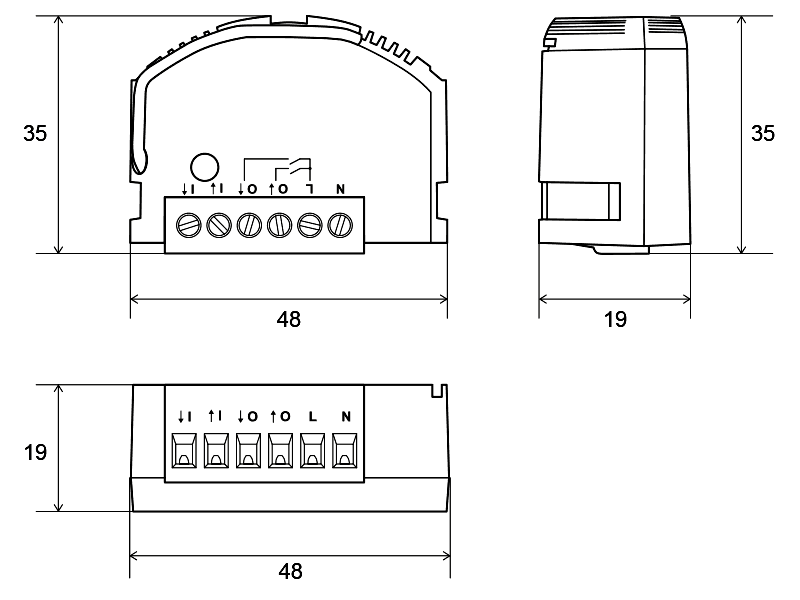
Device dimensions
Device functions
The device was designed and manufactured in Poland in accordance with applicable standards.
It is suitable for installation in junction boxes with a minimum depth of 60 mm and meeting national standards.
A correctly connected and configured device allows you to:
- control of the rotary motor in both directions,
- ability to control roller shutters and gates,
- Possibility of control using monostable, bistable or remote buttons,
- measurement of the supply voltage value,
- measurement of active power and total energy consumption by the connected receiver,
- secure radio connection using the AURA protocol.
Additionally, the AURATON Roller Shutter is equipped with:
- software protection against switching on the voltage when it is not within the permissible operating range of the device,
- software overcurrent protection protecting the module against damage,
- software protection against exceeding the permissible internal temperature,
- two-color internal LED to identify device status.
Description of measured parameters:
- Active power – the power consumed by a device, resulting from the supply voltage, current, and load characteristics. This value directly translates into electricity bills.
- Electricity consumption – a measure of electricity consumption, expressed in kWh (kilowatt-hours). This value is also displayed on the electricity meter installed in every home.
Connection to the power supply
The AURATON Roller Shutter may only be connected to a 230 V AC power supply. The electrical installation should be protected by a circuit breaker with a maximum current of 10 A, meeting national standards. The minimum cross-section of the connecting wires should be 1 mm², while the maximum cross-section of the connecting wires cannot exceed 2.5 mm². No additional settings are required for either type of supply voltage. The connection method is shown in the drawing below. Pay particular attention to the markings of the N and L power terminals.
Improper connection of the device may result in damage to the device and pose a risk of electric shock.
How to connect the power supply to the AURATON Roller Shutter module with roller blinds
Double connector
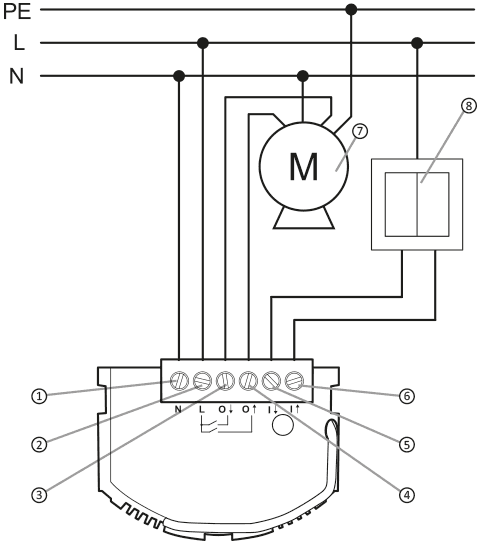
Alternating voltage 60-240 V AC:
Explanations for the diagram:
- (N) neutral terminal
- (L) phase wire terminal
- (O1) motor input – direction A
- (O2) motor input – direction B
- (l1) connector clamp – direction A
- (l2) connector clamp – direction B
- engine
- wall switch
Single connector
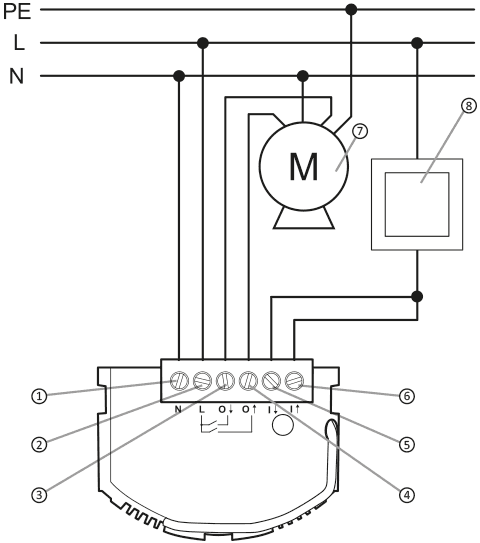
Alternating voltage 60-240 V AC:
Explanations for the diagram:
- (N) neutral terminal
- (L) phase wire terminal
- (O1) motor input – direction A
- (O2) motor input – direction B
- (l1) connector clamp – direction A
- (l2) connector clamp – direction B
- engine
- wall switch
Calibration of the AURATON Roller Shutter with actuator
Basic calibration
For the AURATON Roller Shutter to work properly with an actuator (e.g., a roller shutter), the controller must be calibrated. To initiate the calibration process, use the wall switch to perform the following sequence:
- Press and hold the connector button for 5 seconds.
- Release the switch button for 1 second.
- Press and hold the connector button for 5 seconds.
- Release the switch button for 1 second.
- Press and hold the connector button for 5 seconds.
After this step, the roller shutter will move to its extreme positions to perform calibration. A full movement in both directions is required, which usually means three passes, the first of which establishes the initial position.
Manual calibration of the 1% point
If we're controlling a device with an additional initial opening degree, we can include it in the first 1%, even if it represents a significant portion of the operation. In roller blinds, for example, this is the level at which the slats are straightened, leaving the window still covered but with a small clearance. Adding this level allows for better control of the remaining roller blind positions, both from the top and bottom. To set the 1% threshold, press any button on the switch during the calibration process when the device is in the position we want to define as 1%. The device will then perform an additional movement compared to the standard calibration. The button should be pressed during full movement in the given direction (2nd or 3rd pass; the 1st is ignored).
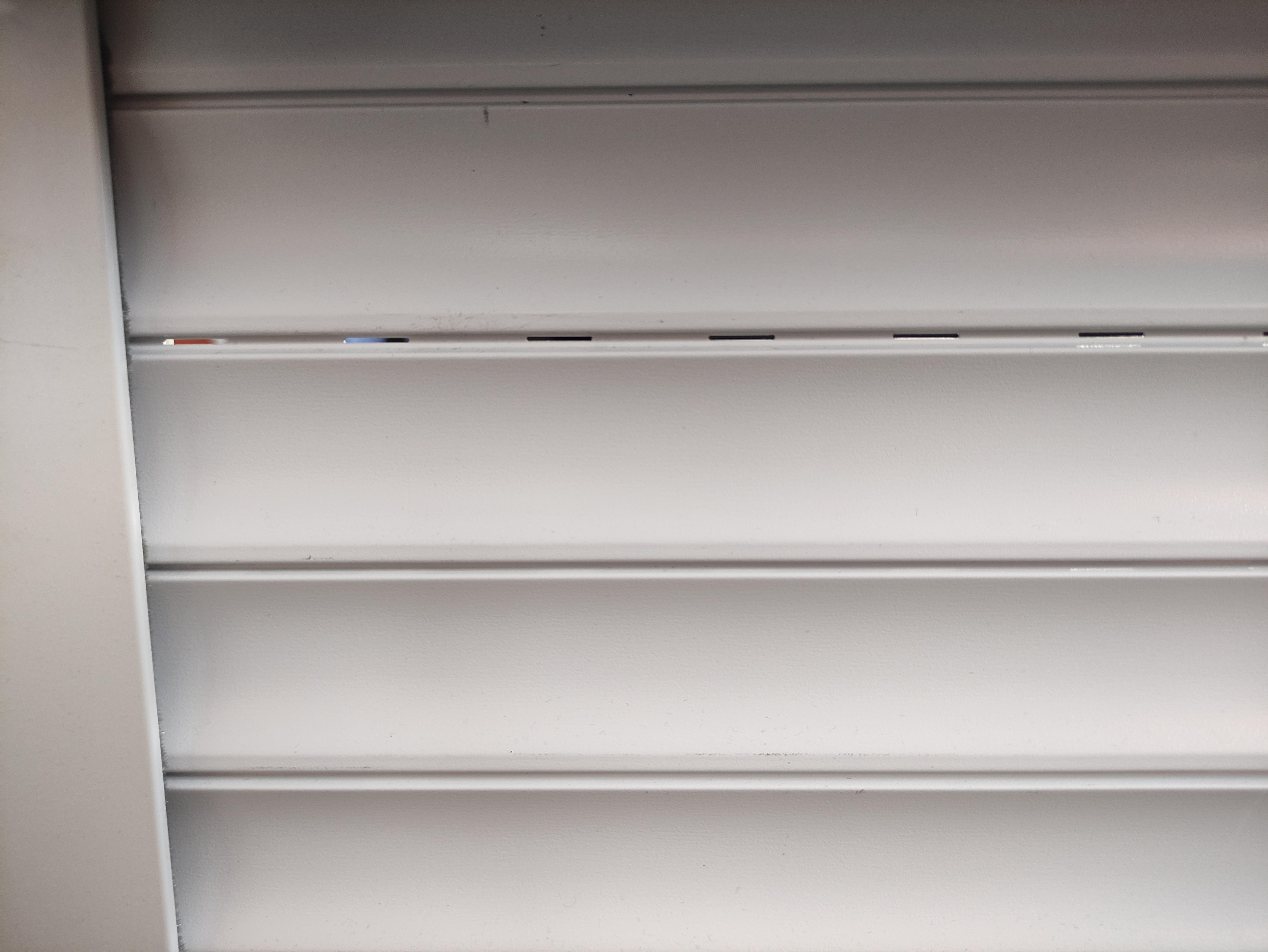
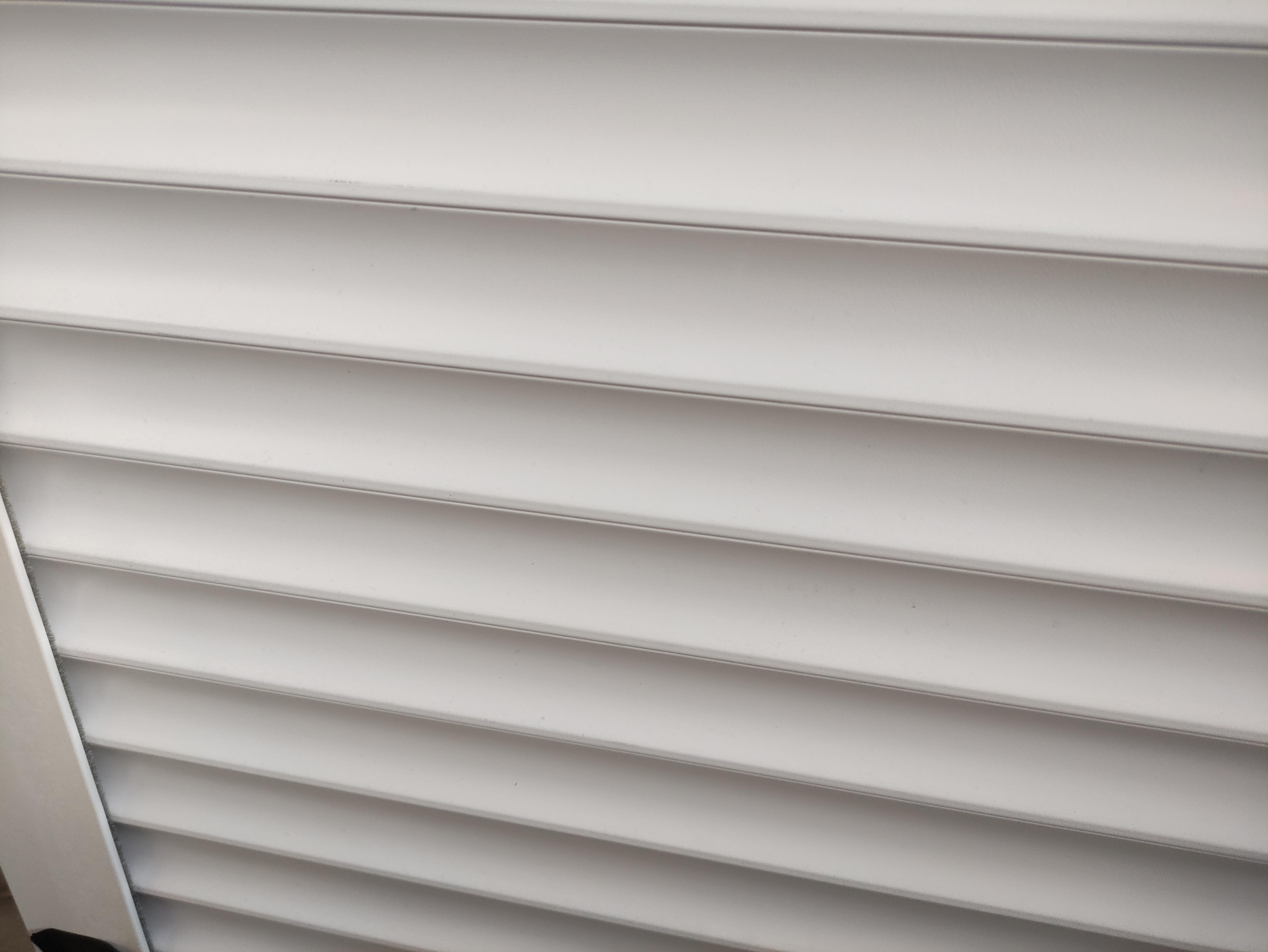
Fig. 4. Example of roller blind settings, on the left with a "clearance", on the right fully closed.
Device pairing
Once the module is properly connected and powered on, the LED inside the housing should begin flashing red, as shown in Fig. 5.1. This indicates that the device is not paired with the SUPLA system. If the LED flashes as shown in Fig. 5.3 or Fig. 5.4, the device must first be removed from the system.
Enabling pairing – AURATON Roller Shutter
To activate pairing, hold down the button on the device's housing. Release the button when the LED lights green. The pairing process should begin, and the LED should flash as shown in Figure 5.2. During this time (approx. 30 seconds), initiate pairing on the other device you want to pair with the AURATON Roller Shutter.
Enabling pairing – AURATON Box gateway
Pairing the AURATON Roller Shutter controller with the AURATON Box gateway can be done in two ways:
- On the AURATON Box gateway, briefly press the right "Auraton" pairing button (
 ) – the LED under the button will start flashing. Then, put the roller shutter controller into pairing mode.
or
- In Supla Cloud, enter the AURATON Box gateway channel and press the "Pair new devices or sensors" button – the LED under the right "Auraton" pairing button will start flashing. Then, put the roller shutter controller into pairing mode.
After pairing the AURATON Roller Shutter controller with the Auraton Box gateway, it is recommended to immediately name it in both channels (the "Relay" channel and the "Electricity Meter" channel) in Supla Cloud. By default, the device is named according to its model or intended use, e.g., "Roller Shutter," which can be confusing when using multiple devices of the same type. To facilitate identification, it is a good idea to give the controller a unique name immediately after pairing. To do this, edit the "Channel Name" and confirm the changes by clicking " Save Changes ."
Fig. 5. Adding a device to the AURATON Box gateway
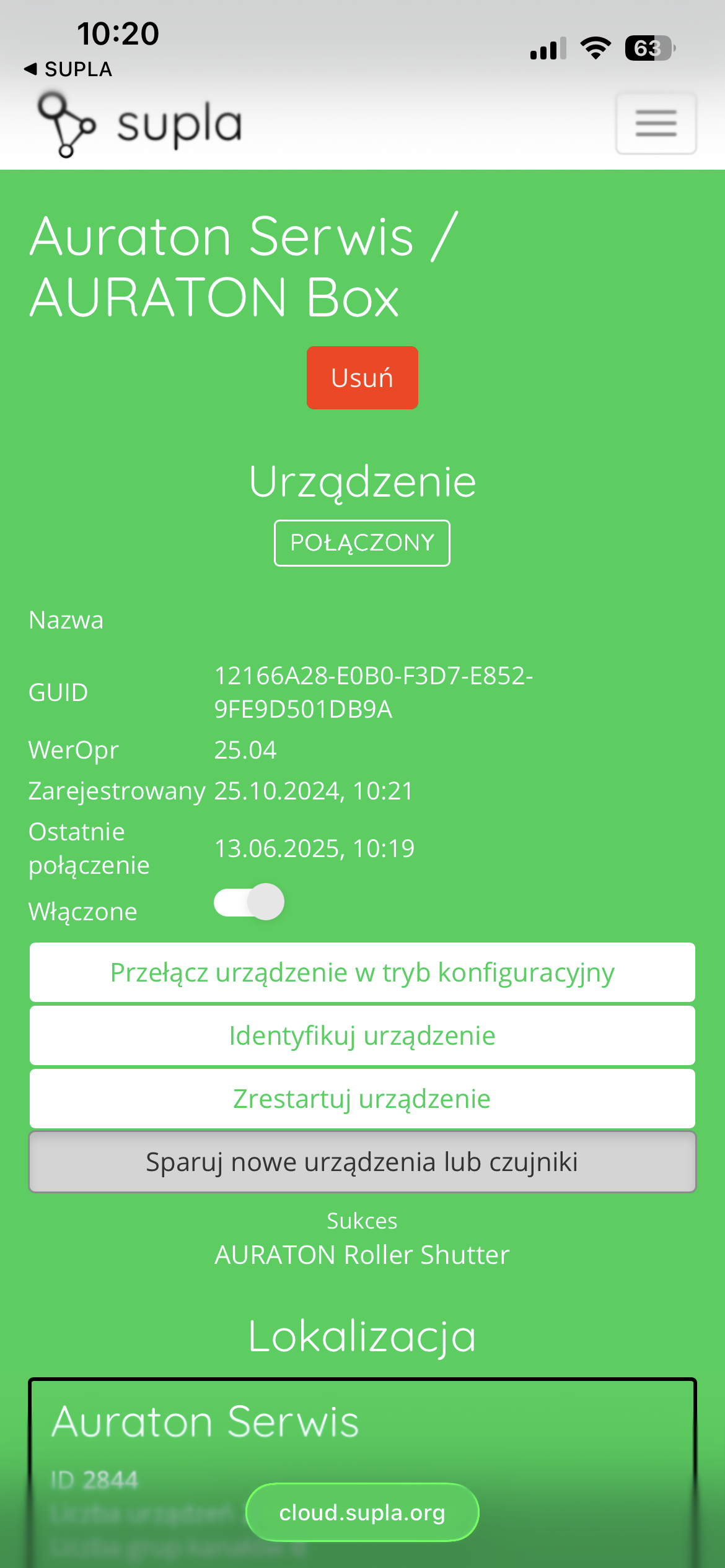
Fig. 6. Time graphs defining how the LED lights up when the device is paired:
- Condition: The device is not connected to the system.
Diode: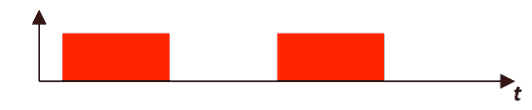
- Condition: Device in pairing mode
Diode: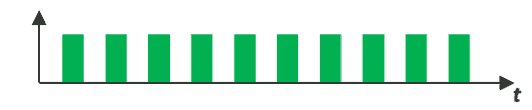
- Condition: The device is connected to the system and is working properly.
Diode: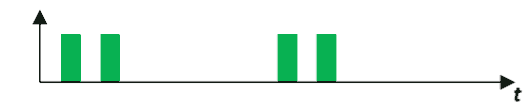
- Condition: The device cannot connect to the AURATON system – check the range.
Diode: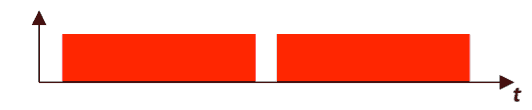
Factory reset
To restore factory settings, hold the button during normal operation (approx. 5 seconds) until the LED lights red. Release the button and press it again within 3 seconds to confirm the operation. All information on the device will be cleared. The LED should indicate that it is not connected to the AURATON Box (Fig. 6.1).
Local control
The AURATON Roller Shutter can be controlled locally using a single or double monostable or bistable switch. The difference in control between monostable and bistable switches results from their design. Bistable switches retain their state after clicking, while monostable switches, also known as bell switches, activate a phase only for a short period.
Single switch – monostable
Direction control is alternating. A single click initiates movement, another click stops, and another click reverses direction. The moment the final position is reached, the movement is stopped.
Example of subsequent "presses" of the connector:
(switch clicked)

(link clicked)
(switch clicked)
(terminal moment)
(click)
Single switch – bistable
Similar to controlling a monostable switch, the direction of action is controlled alternately. A "click" causes movement, an "unclick" stops, and another "click" causes movement in the opposite direction. The moment the end position is reached is equivalent to a stop, but to restart the motor, the switch must be "unclicked" and "clicked" again.
Example of subsequent "presses" of the connector:
(switch pressed)
(switch in neutral position)
(switch pressed)
(end position, switch pressed)
(end position, switch in neutral position)
(switch pressed)
Double switch – monostable
Control is controlled by the clicked switch key. Clicking the "A key" initiates movement in the "A" direction, and the "B key" initiates movement in the "B" direction. Pressing any key during movement stops the motor.
Example of subsequent "presses" of the connector:
(connector A)
(connector A or B)
(connector B)
(terminal moment)
(connector A)
Double switch – bistable
Control is controlled by pressing the switch button. Clicking "key A" initiates movement in direction "A," while "key B" initiates movement in direction "B." Stopping is accomplished by "unclicking" the button that is "pressed." It is recommended to use a switch designed for roller shutters, with the ability to be locked in both directions simultaneously. Failure to follow this recommendation will not cause damage, but pressing it simultaneously will operate as with a "single bistable switch."
Example of subsequent "presses" of the connector:
(connector A)
(connector A)
(connector B)
(terminal moment)
(connector A)
Control via the SUPLA application
After correctly adding the AURATON Roller Shutter to the SUPLA system, the roller shutter is visible in the application as two channels: the roller shutter control channel and the "Electricity meter" channel :
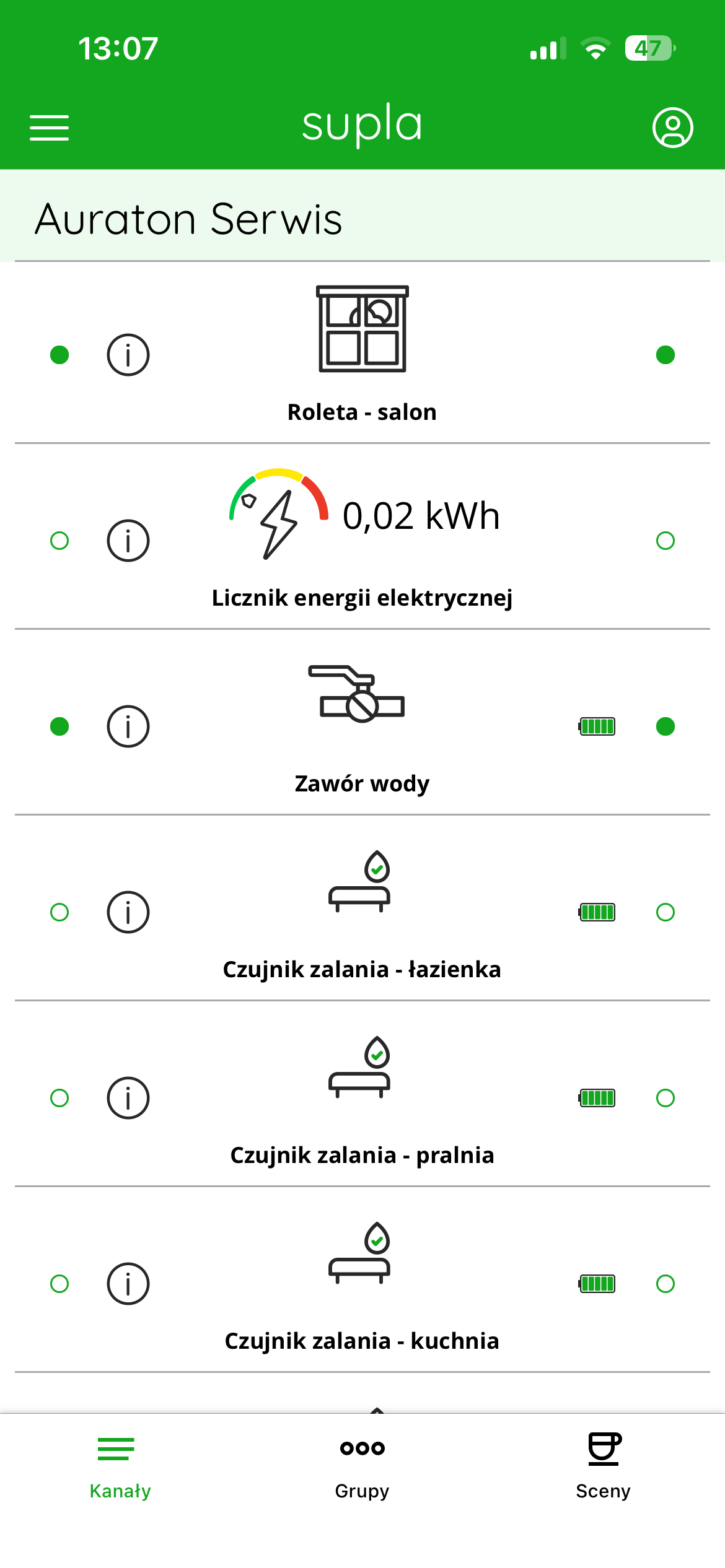
Roller shutter control channel
The SUPLA app allows you to control the opening/closing of your roller shutters after calibration. Calibration can be performed both in the app and via SUPLA Cloud.
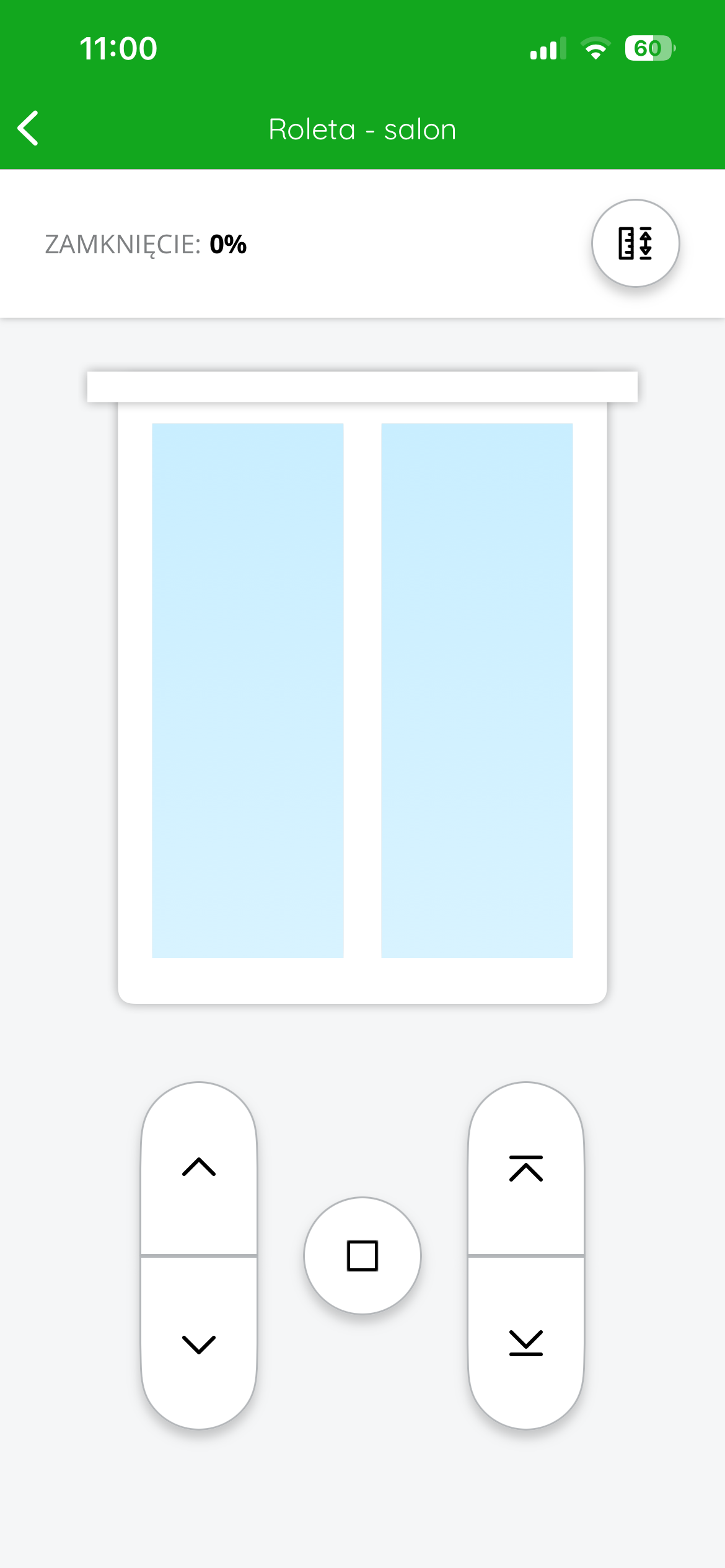
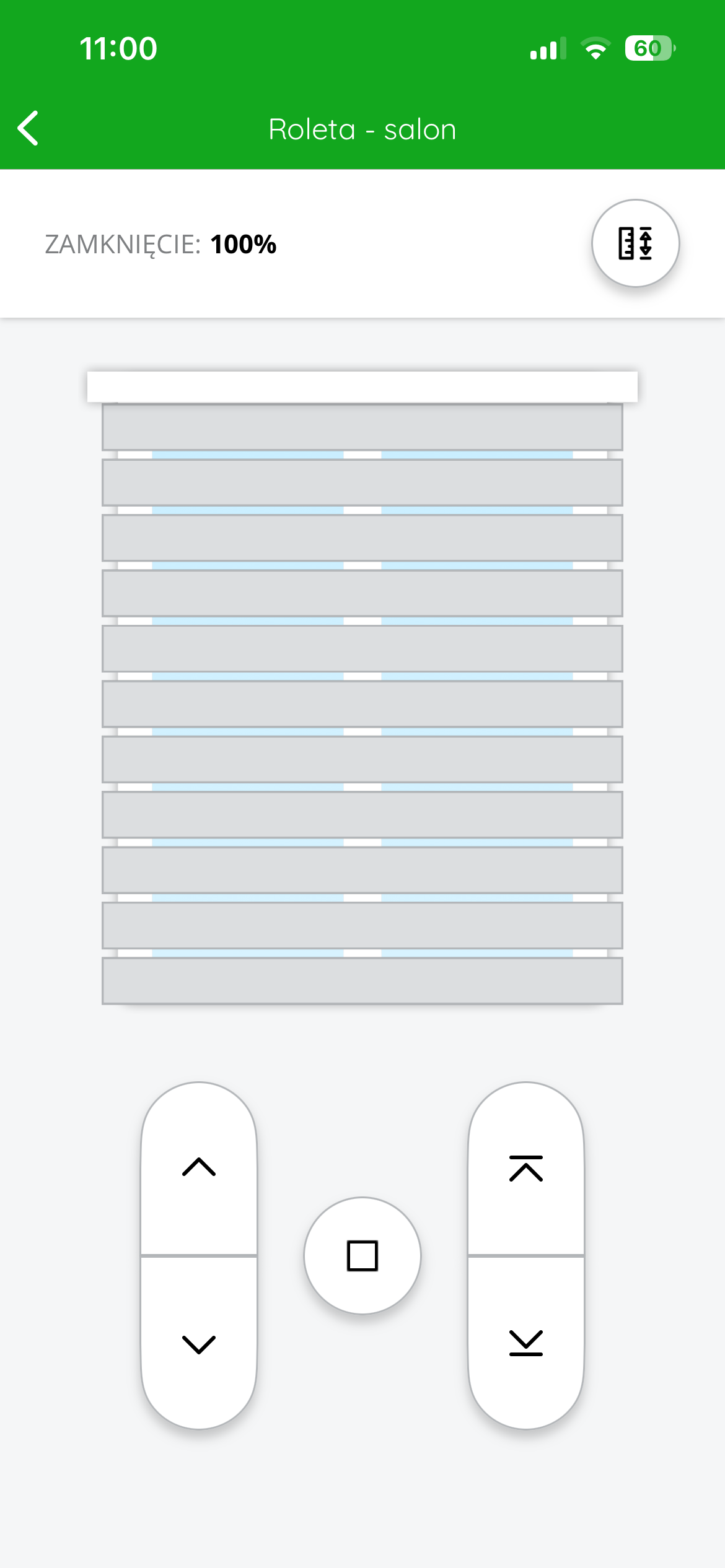
Users gain access to a complete, intuitive roller shutter control panel. The interface displays the roller shutter's current closing status and allows for manual control.
Information about the roller shutter condition
At the top of the screen there is text and graphic information about the current position of the roller shutter – e.g. Closed: 100% (roller shutter completely closed) or Closed: 0% (roller shutter completely open).
Calibration button
In the upper right corner there is an icon with an up-down arrow symbol, which is used for calibration and precise setting of intermediate positions (e.g. 30%, 50%, 70%).
Control panel
There are three main control buttons at the bottom of the screen:
-
Up arrow – starts the roller shutter opening.
-
Down arrow – starts closing the roller shutter.
-
Square (stop) – stops the roller shutter in the current position.
There are also double arrow icons on both sides – these can be used for precise slat control (if the blind supports this function) or fast movement.
Thanks to this interface, the user can not only open and close the blind, but also set it to intermediate positions, which allows for better control over daylight and privacy in the room.
"Electricity Meter" Channel
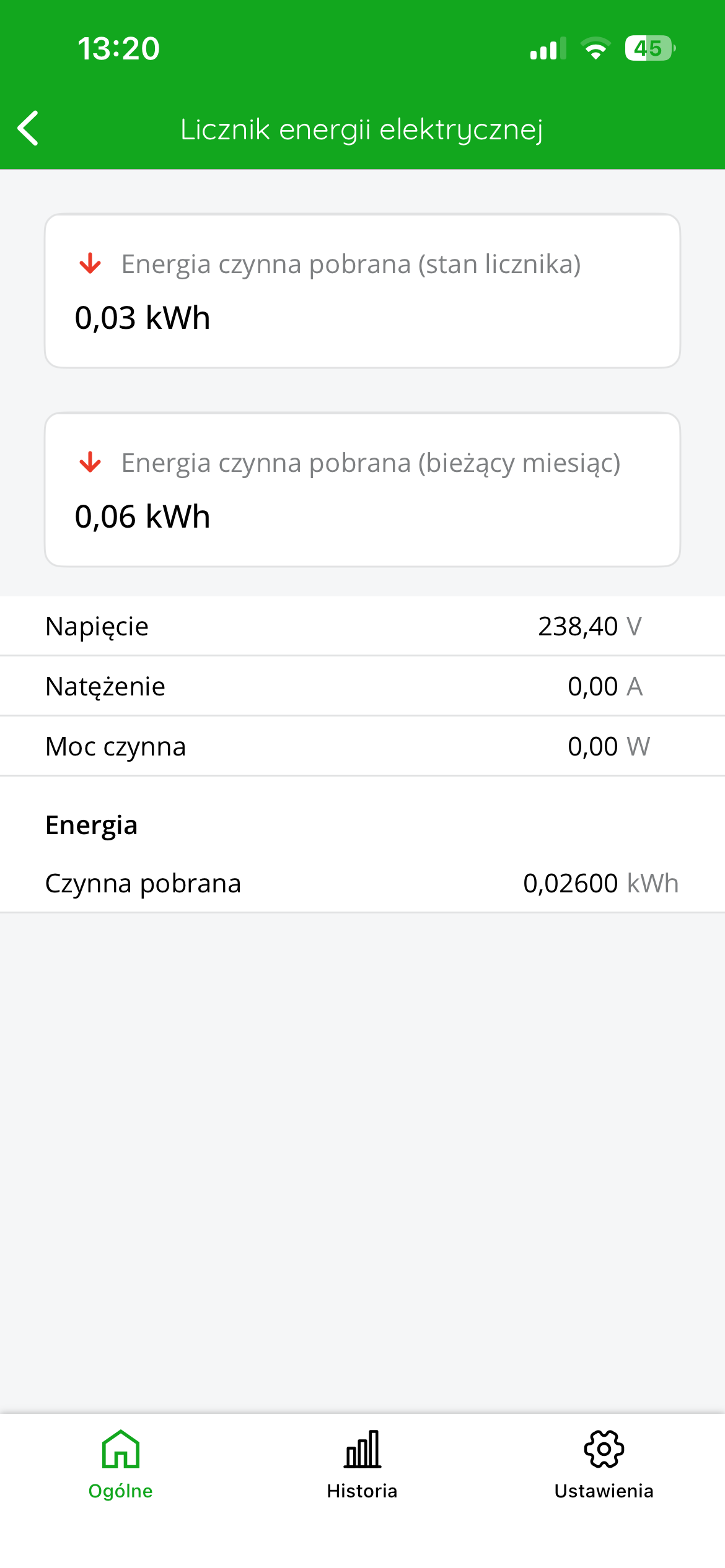
The AURATON Roller Shutter controller is equipped with a function to monitor the roller shutter motor's electricity consumption. After pairing the device with the SUPLA system, the user can access a dedicated energy meter channel in the app. After entering the "Electricity Meter" channel, three tabs are located at the bottom of the screen: "General," "History," and "Settings."
"General" view of a channel displays the following information:
-
Active energy consumed (meter reading) – the sum of the total energy consumed by the device since it was first turned on.
-
Active energy consumed (current month) – the amount of energy consumed since the beginning of the current calendar month.
-
Voltage (V) – current supply voltage (e.g. 238.40 V).
-
Current (A) – the instantaneous current drawn by the device.
-
Active power (W) – current active power consumed during roller shutter operation.
-
Active energy consumed (kWh) – the value of energy consumed since the last reading (e.g. 0.02600 kWh).
This allows the user to easily monitor the power consumption of the roller shutter drive, which is especially important in multi-zone or commercial installations, where optimizing energy consumption translates into real savings.
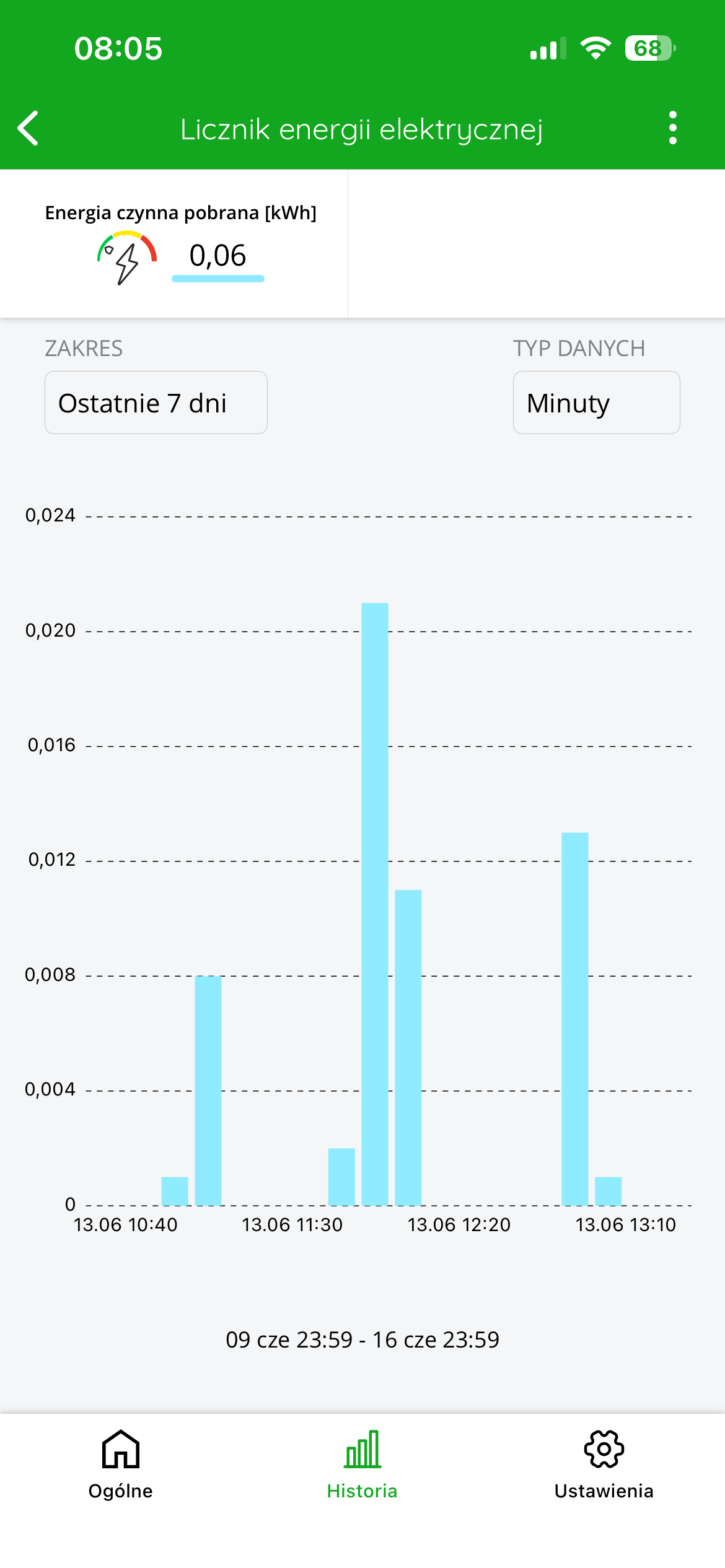
The "History" "Electricity meter" channel the Auraton Roller Shutter controller displays detailed data on the active energy consumption [kWh] by the connected device:
-
Active energy consumed [kWh] – the total amount of energy consumed in the selected time range is displayed at the top of the screen (example: 0.06 kWh ).
-
RANGE – allows you to specify the time period for which data will be displayed. In the example, the following is set: Last 7 days .
-
DATA TYPE – allows you to select the level of detail for the measurement. In the example, Minutes , which means that energy consumption is displayed in minute intervals.
-
Energy Consumption Chart – graphically displays energy consumption over time. The horizontal axis displays the time axis (divided into dates and times), and the vertical axis displays energy values [kWh]. In this example, energy consumption occurred primarily on June 13th around noon.
-
Date range under the chart – specifies the exact time period being analyzed, e.g. June 13 10:40 – June 13 13:10 .
This view allows the user to monitor and analyze the energy consumption of a controlled circuit (e.g., a roller shutter drive) and can be useful for things like detecting irregularities or assessing the device's energy efficiency.
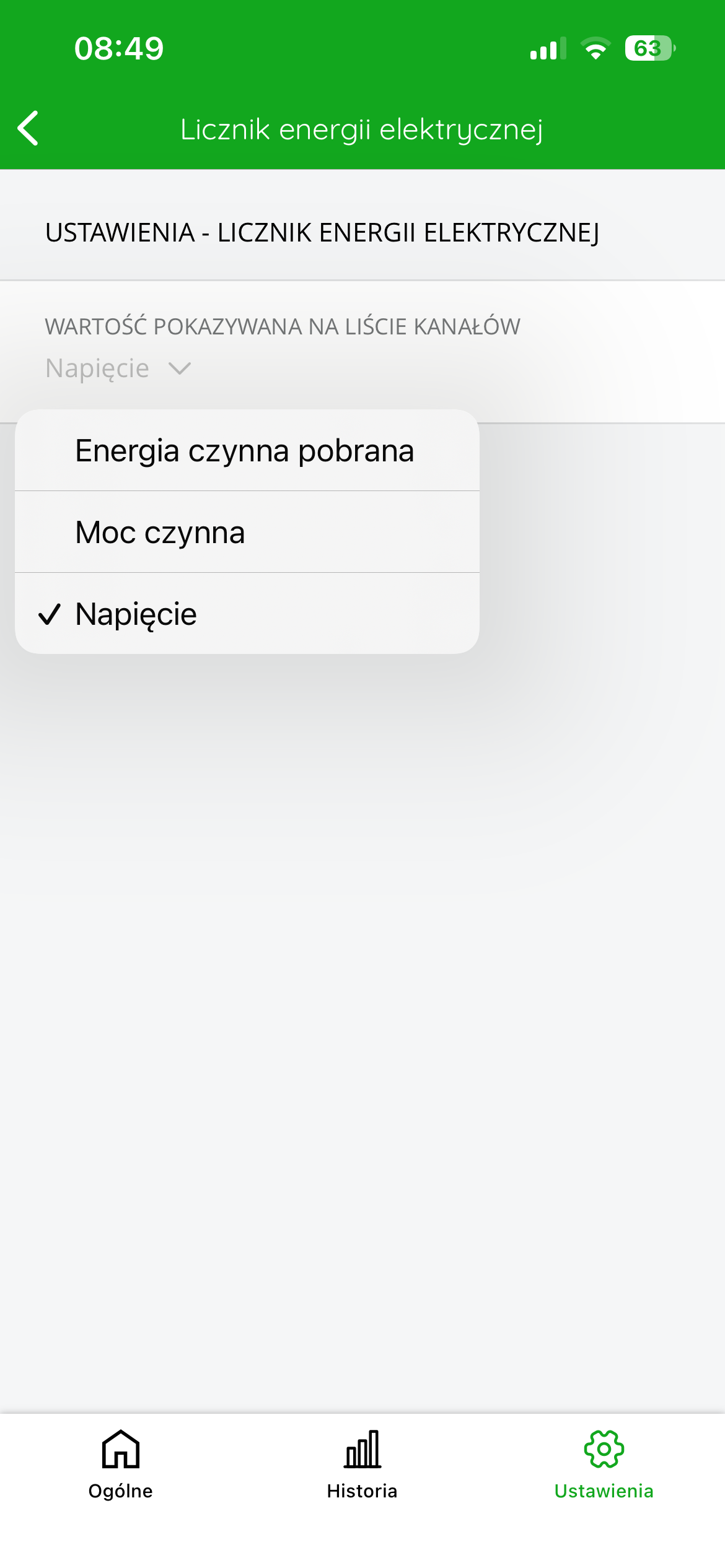
In the " Settings" of the " Electricity meter" in the AURATON Roller Shutter , you can specify which value should be visible in the channel list.
Available options are:
-
Active energy consumed – the total amount of electricity consumed is displayed (in kWh),
-
Active power – shows the current power consumption (in W),
-
Voltage – shows the current voltage in the power supply network (in V).
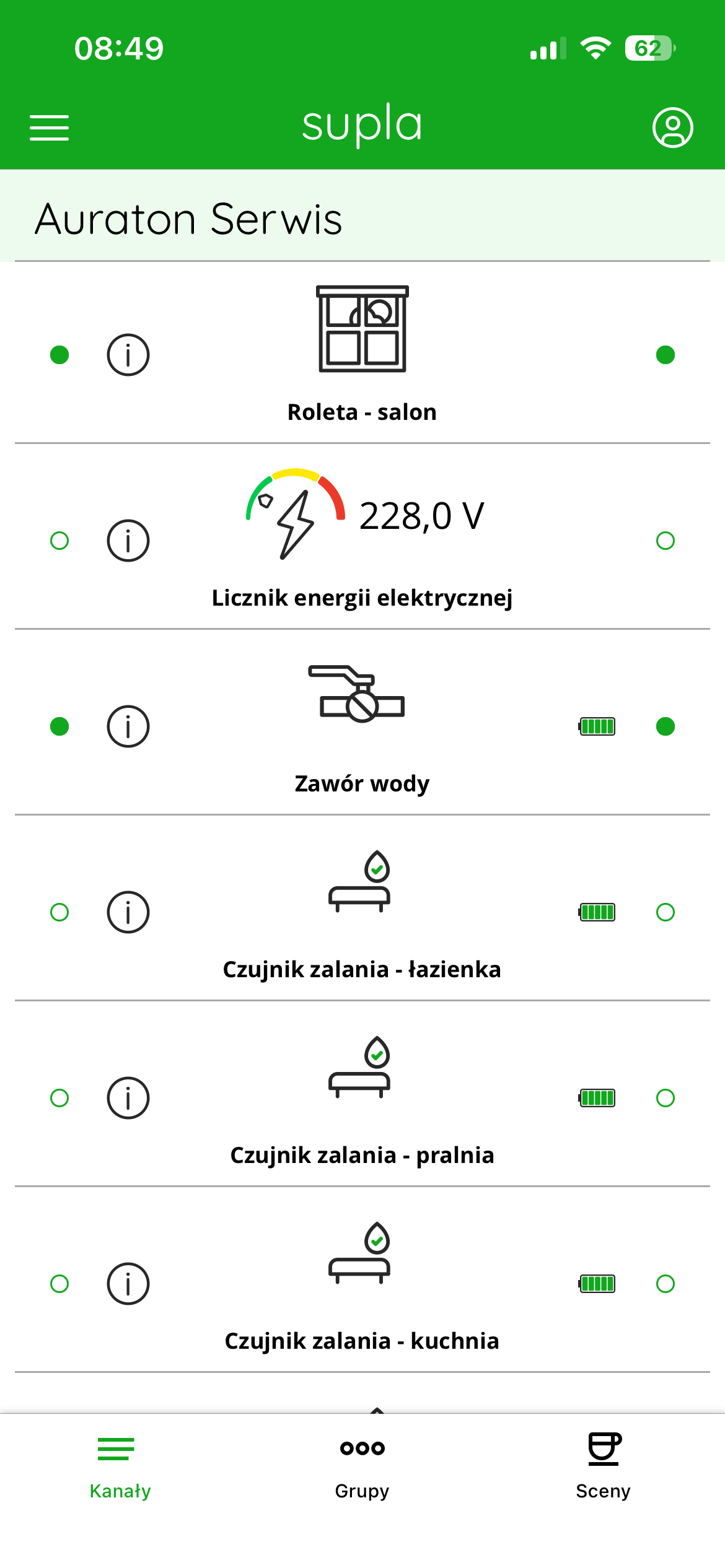
To select one of the above values, go to the Settings in the "Electricity Meter" channel and select your preferred option from the drop-down list. The selected value will be visible in the channel list, allowing you to quickly view the key parameter.
Device configuration in SUPLA Cloud
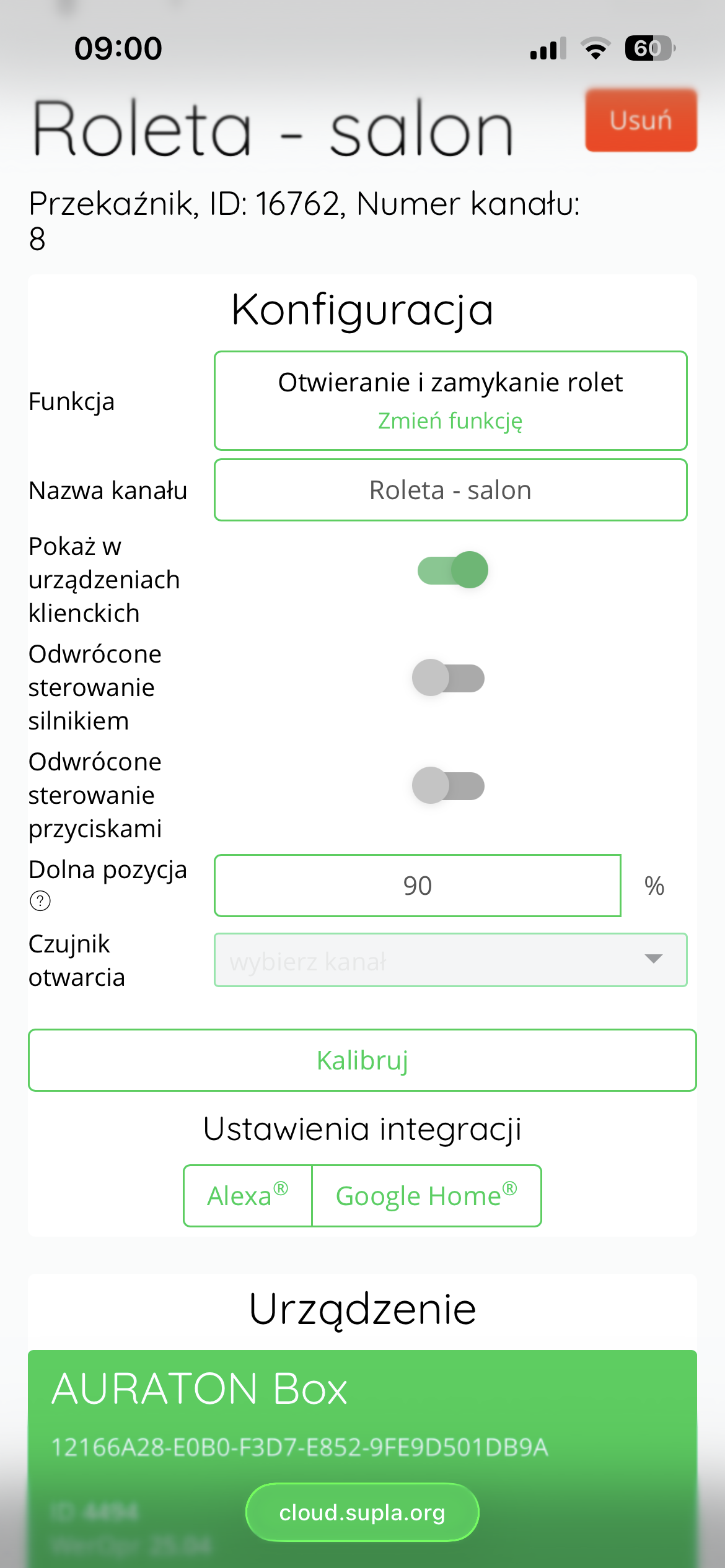
Roller shutter channel configuration
After entering the roller shutter channel of the AURATON Roller Shutter in SUPLA Cloud , detailed configuration options are available.
The settings layout is as follows:
-
Roller shutter name – visible at the top left of the screen.
-
“Delete” button – available on the right side, allows you to remove the channel from the system.
Channel configuration options:
-
Function
Allows you to specify the channel function and the type of roller shutter being controlled. -
Channel Name
Allows you to give your own, individual name to a given roller shutter, which makes it easier to identify in the application. -
Show on client devices (switch)
Determines whether the channel should be visible in the SUPLA mobile application. -
Reverse Motor Control (Switch)
Changes the motor's rotation direction - useful if the blind is operating in the opposite direction than expected. -
Inverted Button Control (Switch)
Allows you to invert the control logic of local buttons (e.g. up/down). -
Lower position
Used to manually enter the percentage value for complete roller shutter closure.Tip: To determine the lower position, close the blind until it touches the bottom edge, then enter the displayed closing percentage into this field.
Entering this value improves the accuracy of the blind's position visualization in the app. -
Opening sensor (in preparation)
This will allow you to link the roller shutter with a window opening sensor in the future – this function is currently unavailable. -
The "Calibrate" button
allows automatic calibration of the limit switches and roller shutter operating time. Recommended after initial installation. -
Voice Assistant Integration
Buttons let you add a channel for Amazon Alexa and Google Home .
After making changes, press the Save Changes to confirm them and send them to your device.
Channel configuration "Electricity meter"
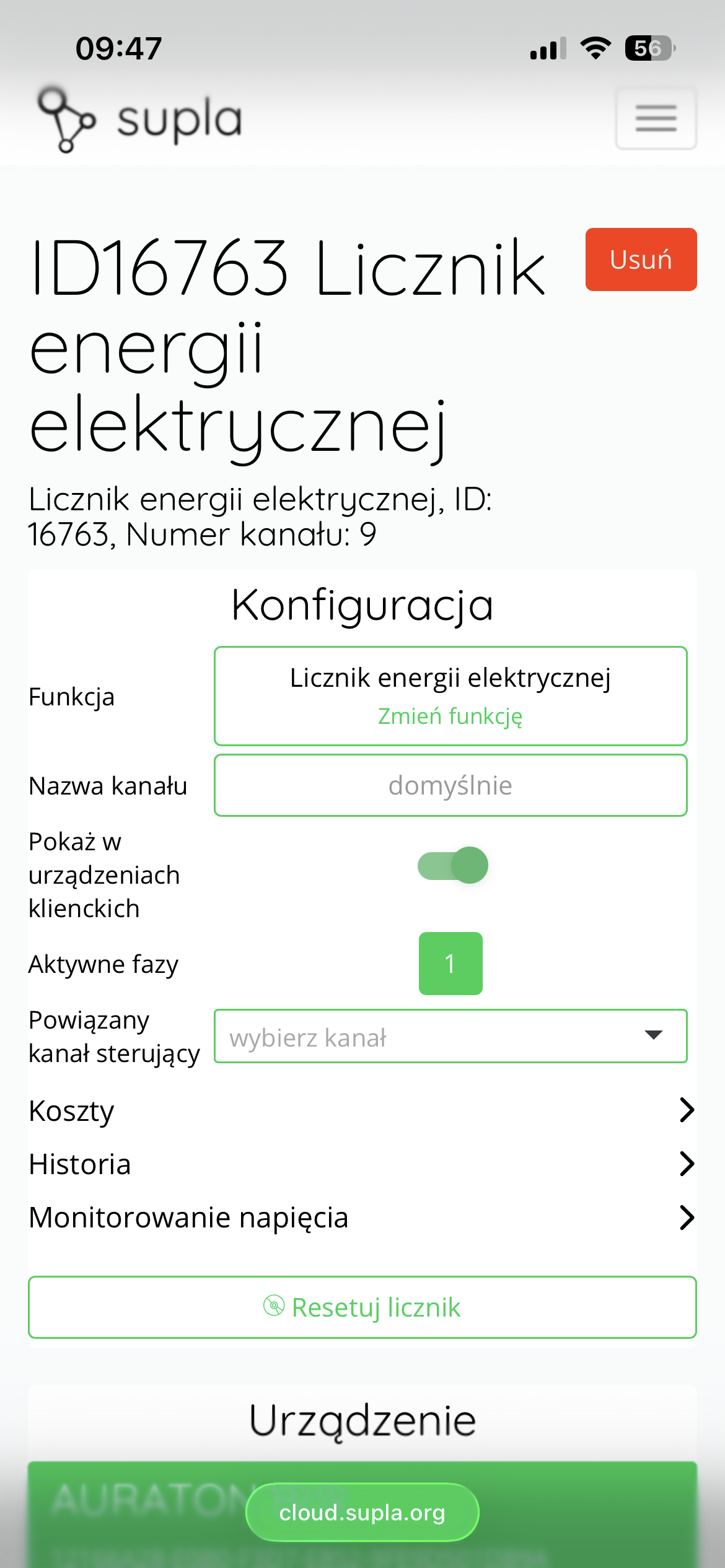
After going to the “Electricity Meter” in SUPLA Cloud, the user can configure its operation according to their own needs.
The page layout is as follows:
-
At the top left of the screen, you will see the channel name .
-
On the right side there is a "Delete" that allows you to permanently remove the device from the SUPLA system.
Configuration settings
Below are the channel configuration options:
-
Function – allows you to specify the type of channel operation.
-
Channel Name – allows you to change the name assigned to a given counter.
-
Show on Client Devices – a slider that determines whether the channel will be visible in mobile apps and user interfaces.
-
Active phases – number of active phases (in the case of AURATON Roller Shutter devices this value is always 1 ).
-
Associated Control Channel – allows you to specify a channel that is to be logically associated with this counter.
"Costs" tab
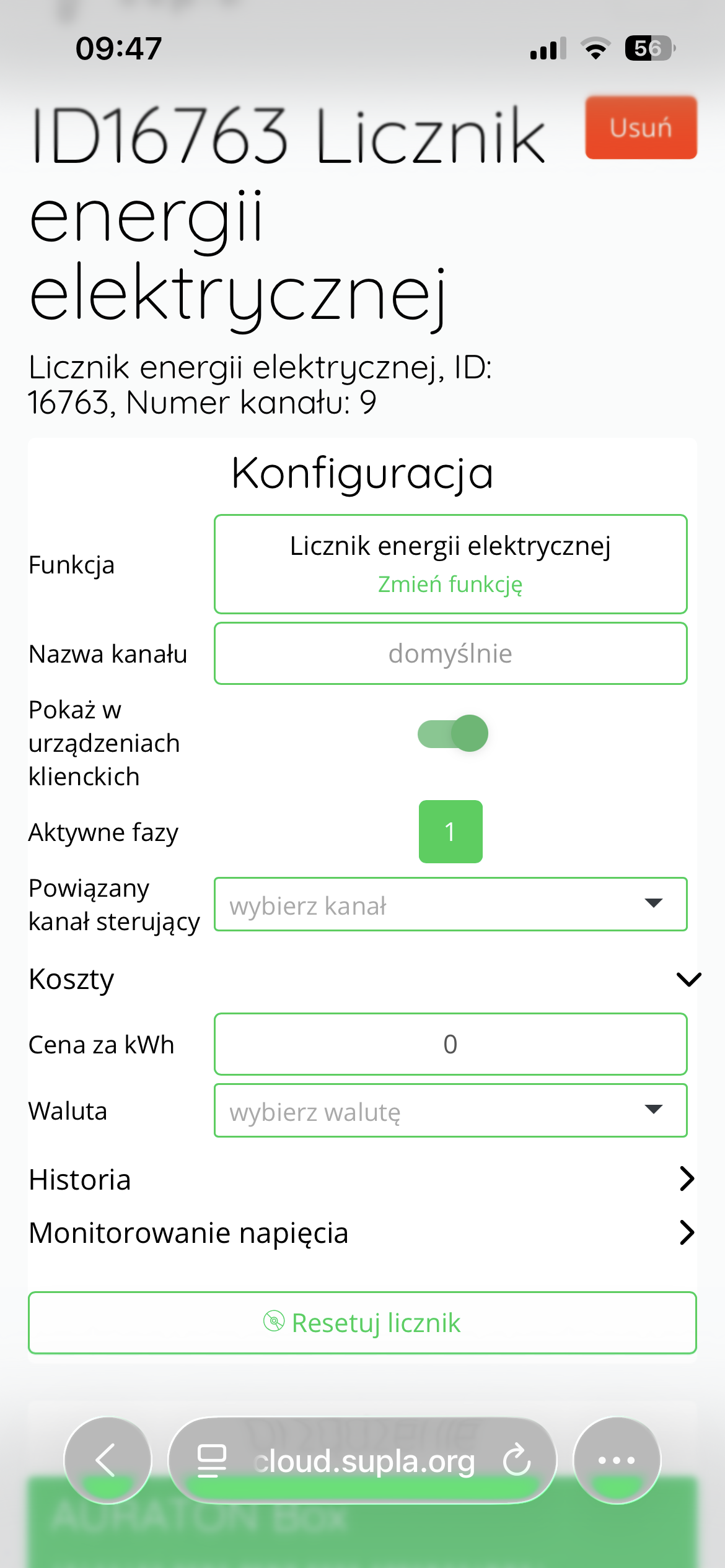
After clicking on the "Costs" , fields expand allowing you to assign price parameters:
-
Price per kWh – enter the cost of one kilowatt-hour of electricity.
-
Currency – specify the currency unit (e.g. PLN, EUR).
"History" tab
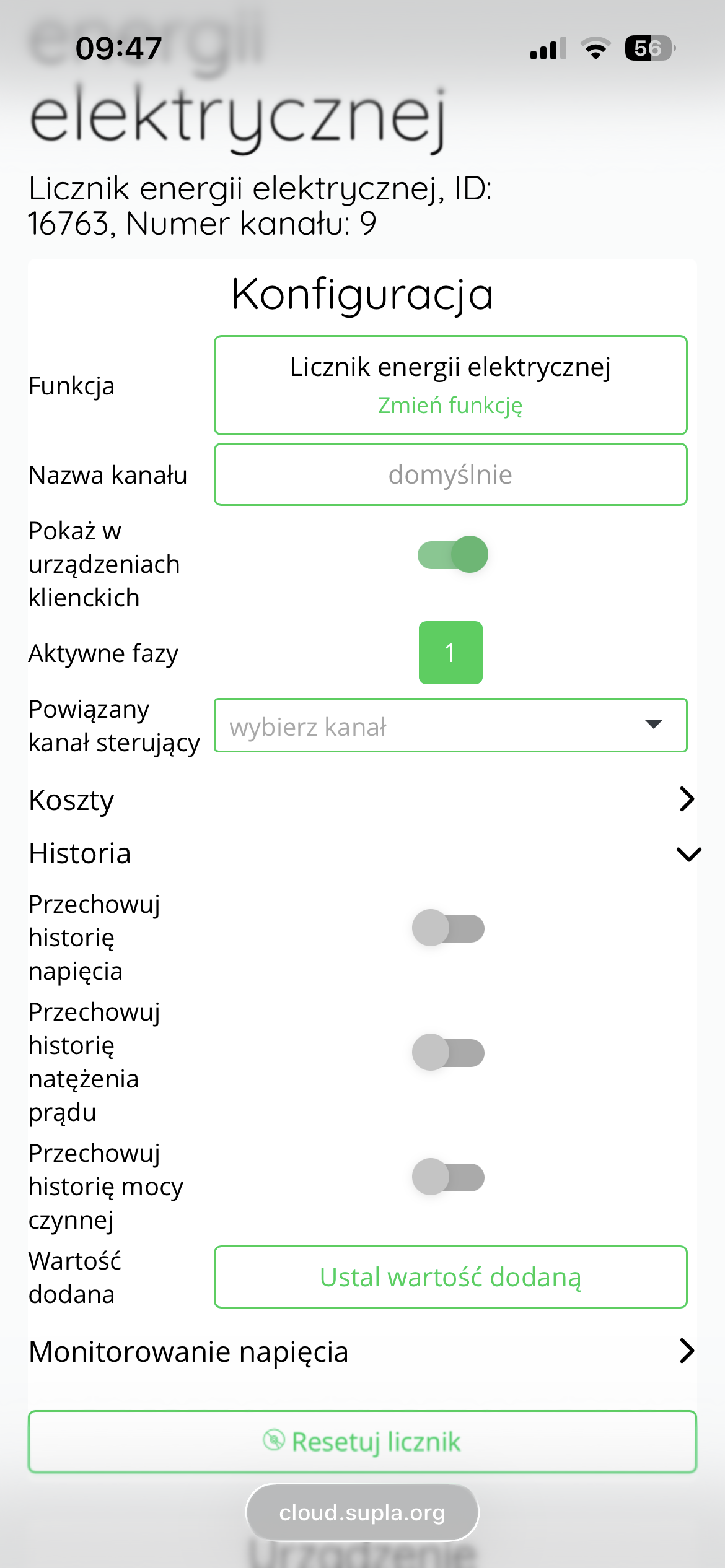
Clicking the "History" reveals settings related to data archiving:
-
Store voltage history – allows you to save voltage history.
-
Store Current History – allows you to save current history.
-
Store active power history – allows you to record the history of power consumption.
Recommendation: To save disk space on your server, it is recommended to leave these three sliders disabled unless detailed data analysis is necessary.
-
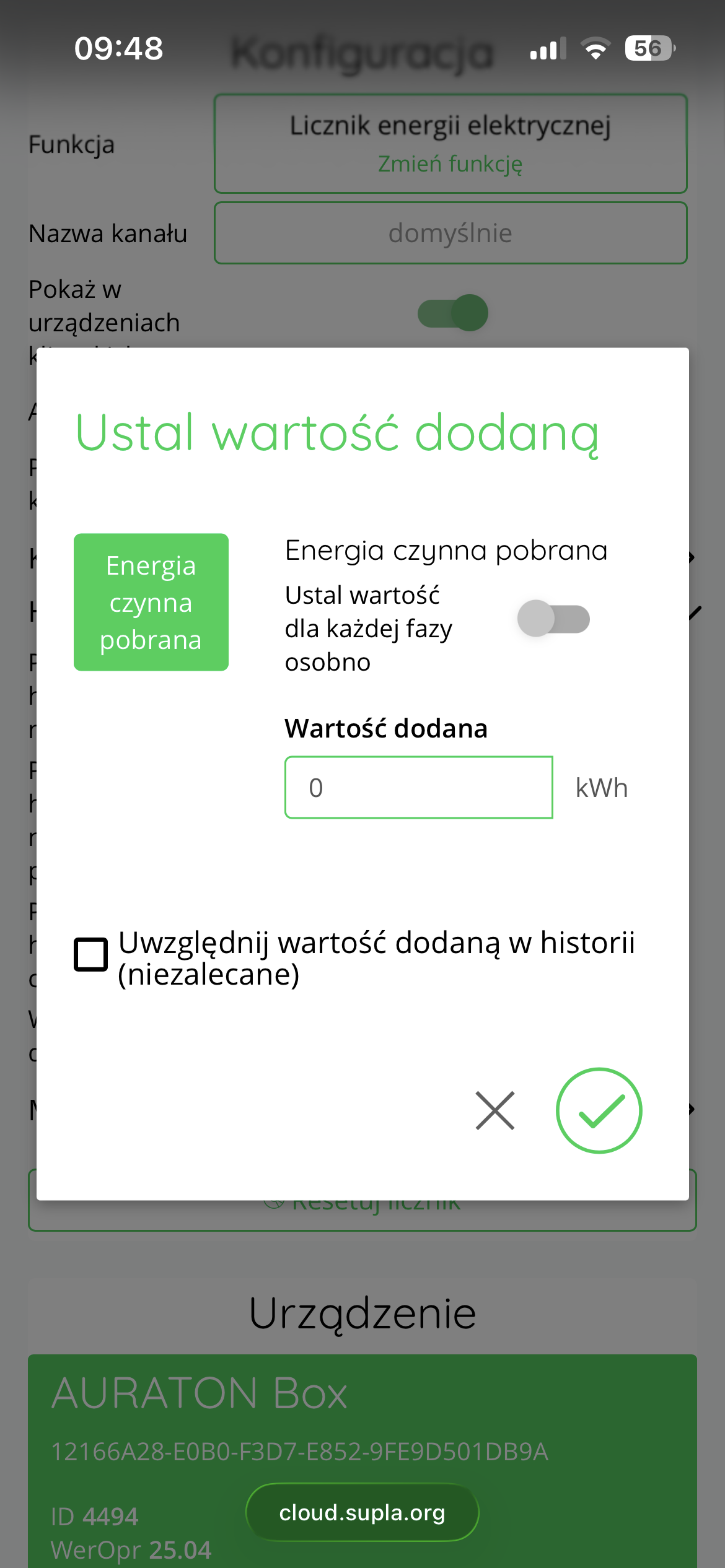
Added Value – allows you to assign an additional value to the Active Energy Consumed measurement. After clicking the "Set Added Value" , you can enter its numerical value.
"Voltage Monitoring" tab
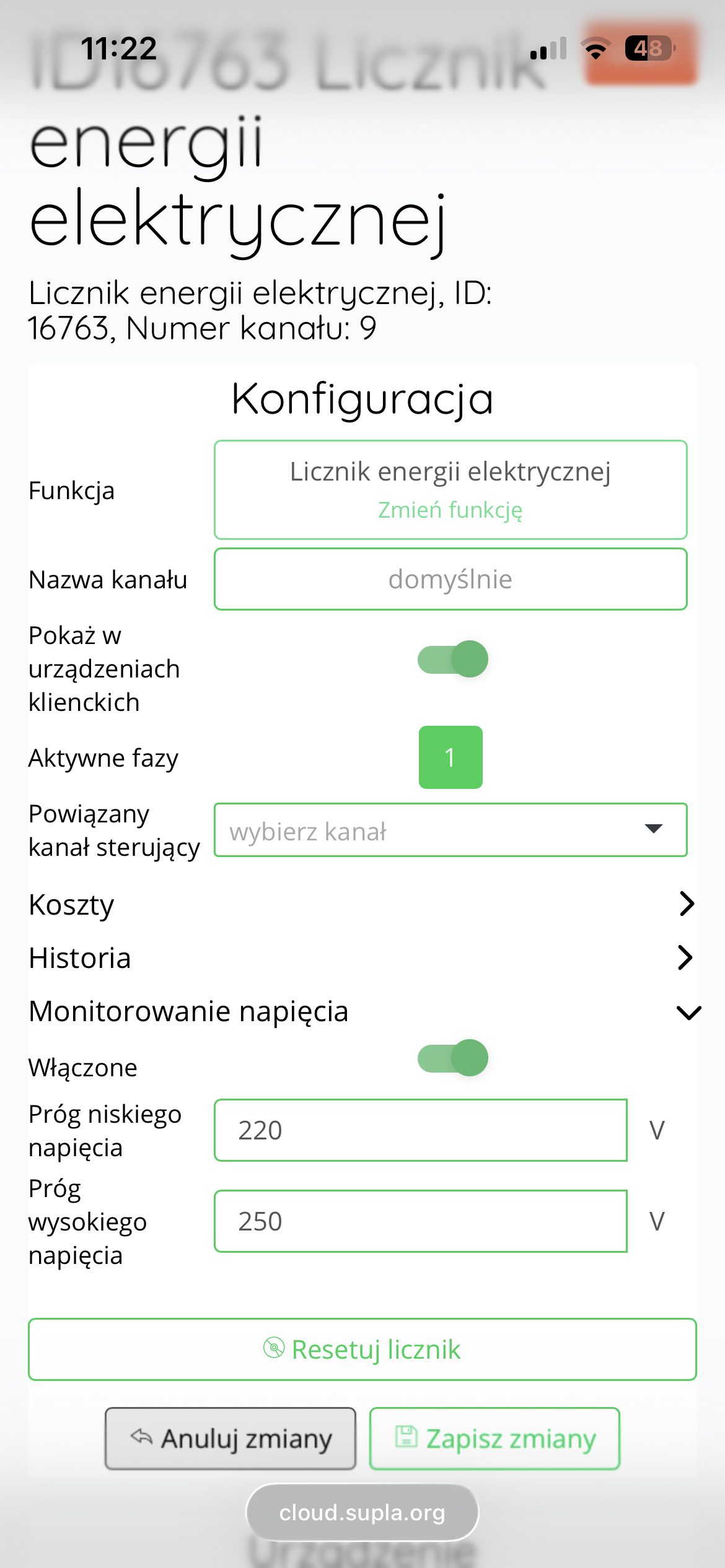
Clicking on the "Voltage Monitoring" expands the options for monitoring the voltage values:
-
Enabled – activating this option allows you to specify warning thresholds:
-
Low voltage threshold – value in [V] below which a voltage drop will be reported.
-
High voltage threshold – value in [V] above which a voltage increase will be reported.
-
Additional options
-
Reset counter – button to reset the energy counter.
Saving changes
After making any changes to the settings, press the "Save changes" to confirm and apply the new settings.
Software update
The AURATON Roller Shutter controller has an automatic software update function.
If a new version is available, the update begins automatically – approximately 15 minutes after the last device is paired with the AURATON Box . This process runs in the background and requires no additional user action.
This ensures that the device always benefits from the latest improvements and fixes introduced by the manufacturer.
Fig. 7. Time graphs defining the LED lighting pattern during software update:
- Condition: Device in OTA update mode.
Diode: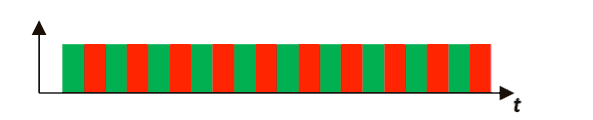
- Condition: Restoring a previous version of the software.
Diode: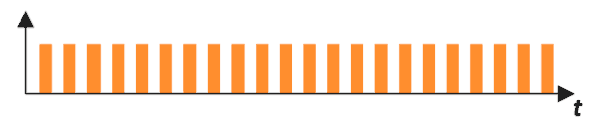
- Condition: Uploading software
(continuous diode status until upload is completed)
Diode: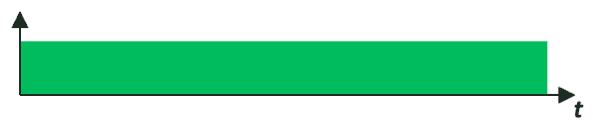
- Condition: No software to load (2 blinks).
Diode: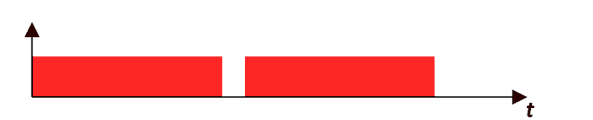
- Condition: Software loaded correctly (3 flashes).
Diode: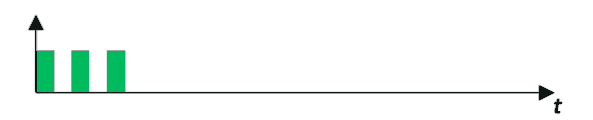
- Condition: Software failed to load, incorrect version in memory or memory communication problem (3 flashes).
Diode: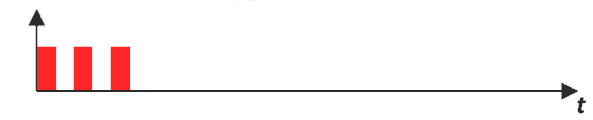
- Condition: An unexpected error occurred during a software update, which prevents the device from turning on correctly.
Contact with service required.
Diode: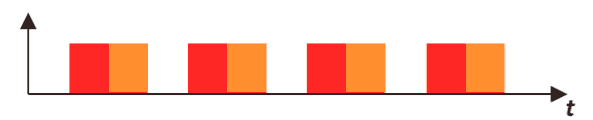
Restoring a previous software version
After completing the update, or if it fails (Fig. 7.4), you can roll back to the previous software version. There are two ways to do this.
With power disconnection
After pressing the button on the device's housing, turn on the power – the LED will flash as shown in Fig. 7.2. While still holding the button, wait until the LED stops flashing. The next steps are the same as for updating the software.
Without disconnecting the power supply
If the device starts correctly and responds to the button according to basic functions, such as pairing and deletion, you can restore the previous version without unplugging the device. Hold the button for at least 7 seconds until the LED turns orange, then release it. Then, while the LED remains lit, hold the button again and proceed as in the example with disconnecting the power supply.
Technical data
| AC supply voltage: | 60-240V AC, 50-60Hz |
| Maximum power consumption: | ≤1 W |
| Power consumption in standby mode: | ≤0.4 W |
| Operating temperature: | 0-35 °C |
| Power cable type, maximum permissible power cable cross-section: | 3 x 2.5 mm2 |
| Permissible load: | up to 4.3 A (<1 kW) |
| Security type: | An external circuit breaker with a maximum current of 10 A is required. |
| Control element: | Electromagnetic relay with micro-break |
| Control method: | remotely – by radio, locally – using buttons |
| Maximum number of paired devices: | 1 |
| Cooperation with the internet gateway | AURATON Box |
| Reception: | up to 50 m in open space up to 30 m in a building, depending on obstacles |
| Radio frequency: | 868.150 MHz 868.450 MHz |
| Radio signal strength: | up to 11 dBm |
| Radio receiver category: | 2 |
| Radio protocol: | AURA |
| Degree of protection: | IP20 |
| Dimensions [mm]: | 48 x 35 x 19 |
Disposal of the device
O
Devices are marked with a crossed-out waste bin symbol. In accordance with European Directive 2012/19/EU and the Waste Electrical and Electronic Equipment Act, this marking indicates that this equipment, after its useful life, must not be disposed of with other household waste.
Users are obligated to dispose of it at a collection point for used electrical and electronic equipment.
LARS Andrzej Szymański hereby declares that the AURATON Roller Shutter radio equipment type is in compliance with Directives 2014/53/EU and 2011/65/EU. The full text of the EU declaration of conformity is available in the download section below.
Manufacturer's address and contact details:
LARS, ul. Świerkowa 14
64-320 Niepruszewo
www.auraton.pl