

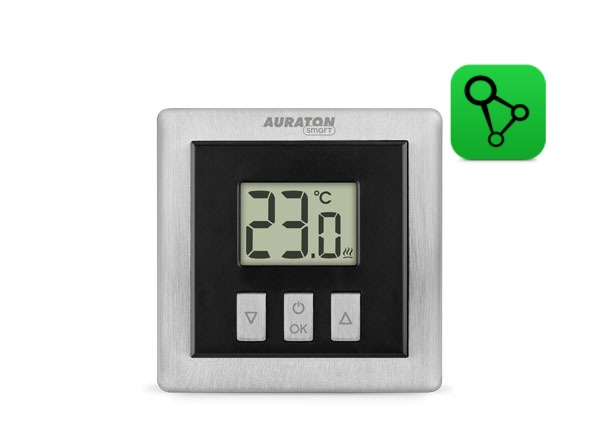
User manual ver. 20250523
This document collects information regarding the safety, installation and use of the AURATON Heat Monitor device.
| U | The "FrostGuard" function protects the room from freezing. |
| & | Possibility of cyclically lowering the programmed temperature from 1°C to 10°C for a period of 1 to 12 hours (function not available when AURATON Heat Monitor is paired with the AURATON Box gateway. |
| LCD | Illuminated LCD display The illuminated display allows you to monitor the device's operation even in poorly lit rooms. |
| HOTEL | Hotel mode allows you to block almost all thermostat functions except for simple lowering and raising the temperature within certain limits. |
| OTA | Software update It is possible to update the device software using the AURATON Box gateway. |
Basic information
This manual applies only to the version of the AURATON Heat Monitor controller compatible with the SUPLA system. If you are using the Auraton Smart App, please refer to the manual for that system.
The AURATON Heat Monitor heating regulator is designed to work with the Radiator Controller head, the Heater Controller furnace controller, the AURATON Floor Heating Controller wireless strip and the AURATON Box gateway, which allows you to control operating parameters using the Supla application on your phone or tablet.
Description of the regulator
The front of the housing has a backlit LCD display and three function buttons.
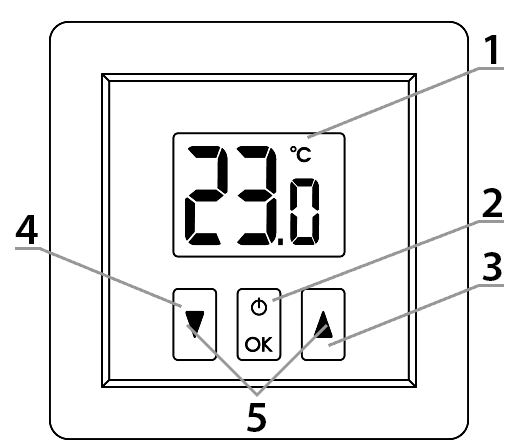
Explanations for the diagram:
- – LCD display
- – confirmation button or controller on/off
- – temperature increase button
- – temperature reduction button
- – “temporary temperature reduction” mode buttons
| d |
|
Display
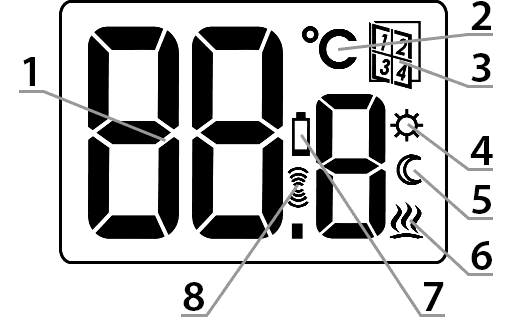
Explanations for the diagram:
- – Temperature
In normal operation mode, the controller displays the temperature of the room in which it is currently installed. - – Temperature unit (R )
Indicates that the temperature is displayed in degrees Celsius. - – Hotel mode
Indicates that hotel mode is enabled. - – Temporary temperature reduction mode programming indicator (S )
Indicates that the user has scheduled a temporary temperature reduction mode. This appears when the mode is not currently running, but the temporary temperature reduction function is active (for more information, see the section "Setting the temporary temperature reduction mode"). - – “Temporary temperature reduction” mode indicator (T )
Appears when the “temporary temperature reduction” program is running. - – Controller On Indicator (a )
Informs about the device's operating status. Visible when the controlled device is turned on. - – Low Battery (X )
This indicator appears when the battery voltage has exceeded the minimum allowable level. The battery must be replaced as soon as possible. - – Transmit symbol (W )
Indicator visible after radio communication.
Choosing the right location
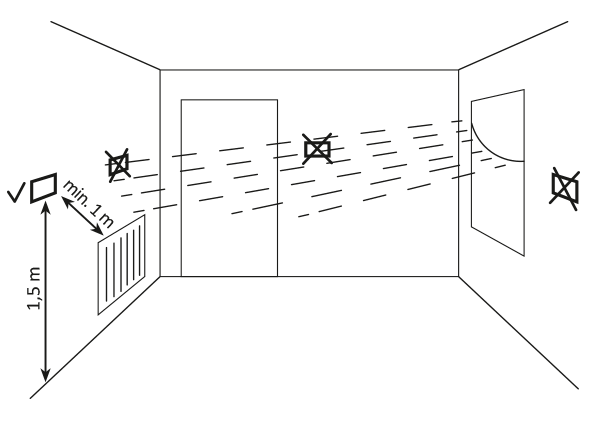
The proper operation of the thermostat is largely influenced by its location. Siting it in a location without air circulation or in direct sunlight will result in incorrect temperature control. To ensure proper operation, the thermostat should be mounted on an interior wall (partition wall). Choose a location where you spend most of your time, with free air circulation. Avoid proximity to heat-emitting devices (television, radiator, refrigerator) or locations exposed to direct sunlight. Avoid placing the thermostat directly next to a door to avoid vibration.
Battery installation/replacement
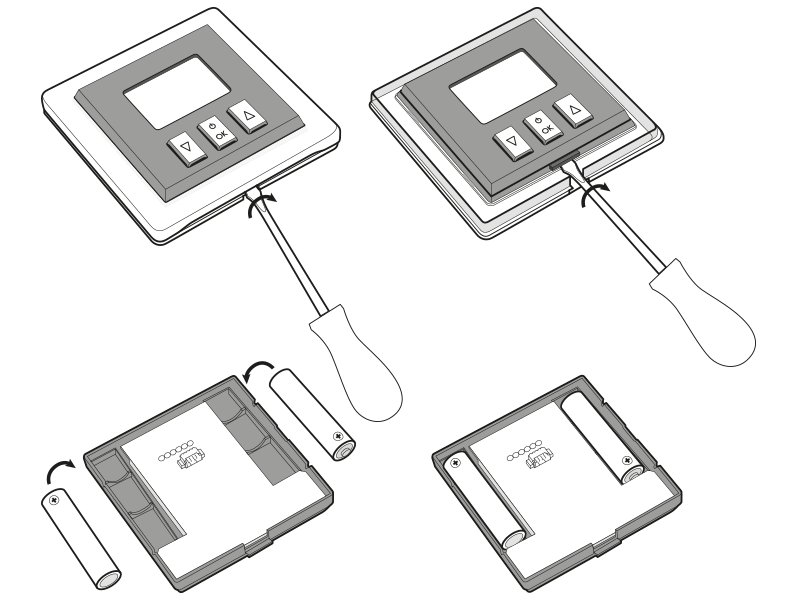
The battery compartments are located inside the controller on both sides of the display. To install the batteries, remove the controller's housing as shown in the figure.
Insert two 1.5V AAA batteries into the compartment, observing the correct polarity.
NOTE!
We recommend alkaline batteries to power AURATON controllers. Rechargeable batteries should not be used due to their low rated voltage.
Device assembly
Wall mounting
To attach the regulator to the wall:
- Remove the controller housing (as shown in the "Installation/Replacing the Battery" section).
- Drill two 6 mm diameter holes in the wall (mark the hole spacing using the rear part of the controller housing).
- Insert the expansion bolts into the drilled holes.
- Screw the rear part of the controller housing to the wall using the screws included in the kit.
- Install the batteries and put the regulator housing back on.
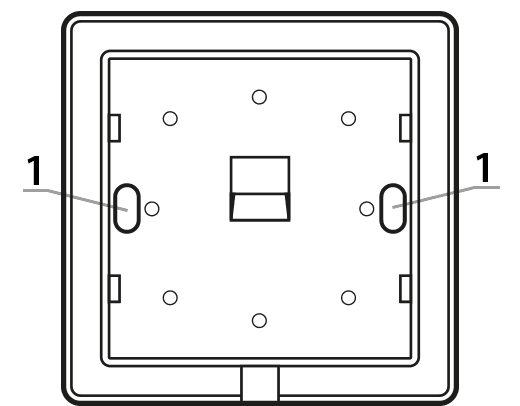
1 – Hole for mounting screw.
NOTE:
If you're building with a wooden wall, there's no need to use expansion bolts. Simply drill 2.7mm holes (instead of 6mm) and drive the screws directly into the wood.
Alternative mounting methods
The controller can be attached to a smooth surface using double-sided tape, for example. It can also be placed anywhere on a flat surface using the included stand.
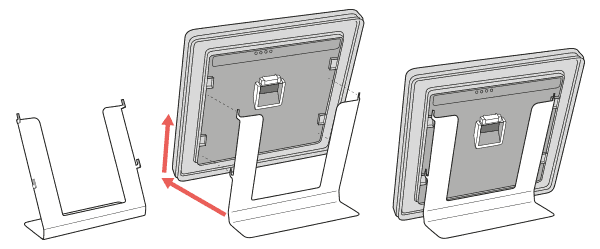
How to mount the support:
Factory reset
Remove the AURATON Heat Monitor controller's casing (as shown in the "Installation/Battery Replacement" section), remove one battery, pressd and hold the button while reinserting the batteries. While the device is starting up, hold the button for 3 seconds until the countdown ends. The controller should restart (all display segments will appear for one second), and only then should you release the buttond . The controller will resume normal operation, and all settings will be restored to factory defaults, including clearing all data for paired devices. If the current temperature screen appears instead of the countdown, it means there is no data left to delete.
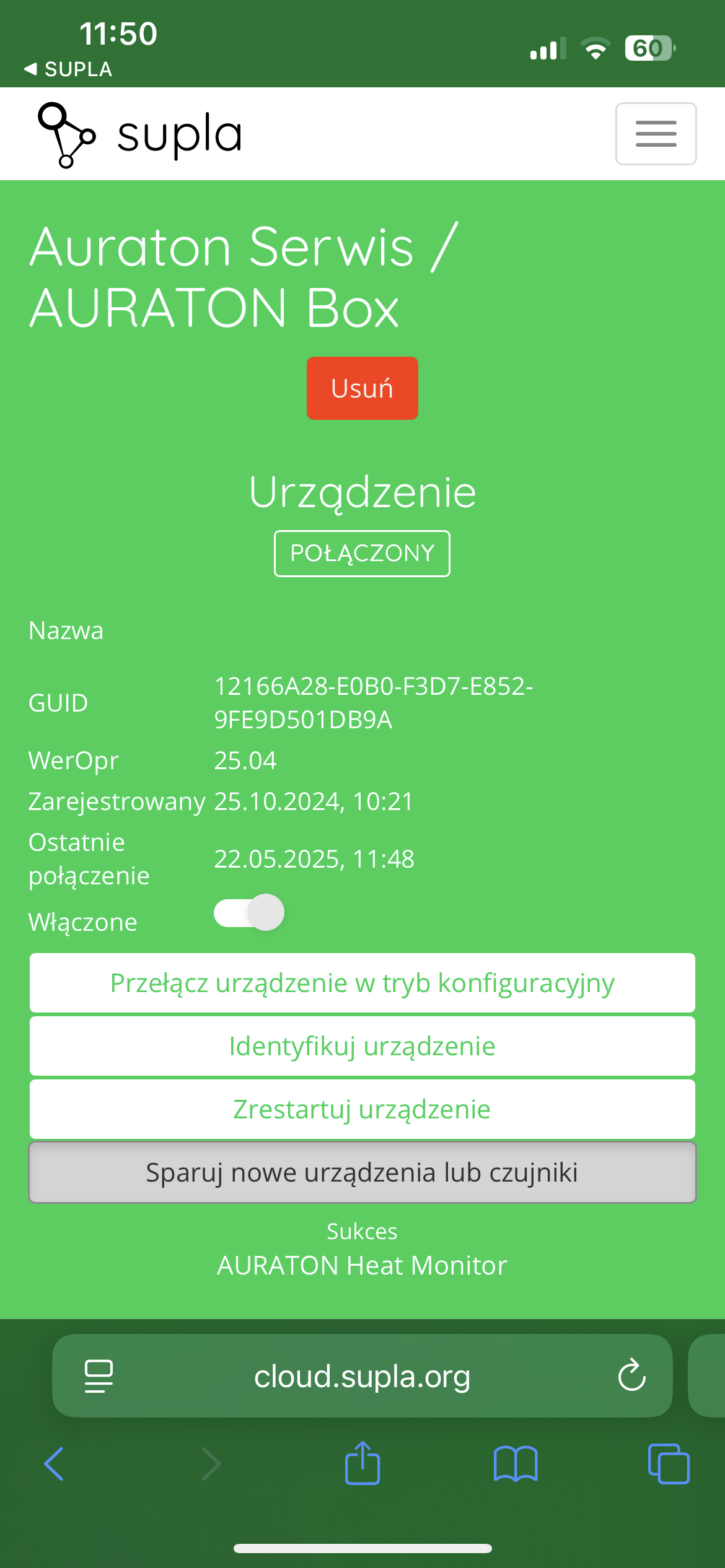
The device paired with the AURATON Box gateway must also be removed from SUPLA Cloud.
You can check if the AURATON Heat Monitor controller has any paired devices by changing the target temperature using the buttons and observing whether the transmitting symbol (W ) lights up on the display. If the transmitting symbol does not appear, it means the device has not sent any radio messages and the paired devices have been deleted.
Device functions
How does the heating function work?
The AURATON Heat Monitor can decide when the heating should be turned on (e.g., when working with a Heater Controller), but it can also simply serve as a temperature sensor with the ability to set a target temperature on a second device (e.g., when working with a Radiator Controller). In the first case, when the Heat Monitor turns on the heating, the heating algorithm has a hysteresis of 0.2°C, meaning, for example, if the target temperature is 21°C, the device will turn on the heating when the room temperature drops to 20.8°C and turn it off when it rises to 21.2°C. According to this algorithm, the heating symbol (a ) is displayed.
Temperature setting
To set the desired temperature in normal operation mode:
- Press theb orc . The temperature display segment will enter edit mode and start flashing.
- bandc buttons to set the desired temperature with an accuracy of 0.1°C (holding down the button changes the temperature value faster).
- Confirm your selection by briefly pressing the keyd .
FrostGuard function
AURATON Heat Monitor regulator is equipped with a special "FrostGuard" function that protects the room from freezing. This function activates when the regulator is turned off. With the regulator off, when the room temperature drops to 4°C, the current temperature will appear on the display and a signal will be sent to the receiver, which will turn on the heating. When the temperature rises to 4.2°C, the display will turn off again and a signal will be sent to the receiver, which will turn off the heating.
"Temporary temperature reduction" function
This function is not available when the AURATON Heat Monitor is paired with the AURATON Box gateway.
If, for various reasons, you'd like to lower the room temperature by, say, 3°C at the same time each day, you can temporarily reduce it for a period of 1 to 12 hours. Specific values can be set in the configuration menu. To enable this feature:
- Press and hold both buttons for 3 secondsb c T) will appear on the display
- The controller switches to the "temporary temperature reduction" mode and every day at the same time it will lower the temperature programmed in the normal mode by e.g. 3°C for the previously set period.
After the previously set number of hours, the thermostat will return to the basic temperature setting. Instead of the moon symbol (T ), the sun symbol ( ) will appear on the screenS .
The "temporary temperature reduction" mode always begins when the function is activated. This means that any temporary temperature reduction must be programmed at the time you want it to occur.
Deactivating the "temporary temperature reduction" function.
To deactivate the "temporary temperature reduction" mode, press and hold the buttons again for 3 secondsb c (countdown).
T) or sun (S symbol on the display will go out and the controller will return to normal operating mode.
Hotel mode
The AURATON Heat Monitor regulator is equipped with a function that allows you to block certain button combinations from being activated by unauthorized third parties (hotel mode), and it also allows you to limit the temperature setting.
To enable hotel mode:
After holding the right button (up) and inserting the batteries, a 3, 2, 1 countdown will be visible, followed by the maximum temperature setting (the factory setting of 40°C flashes for 10 seconds). If the user does not make changes using the and buttonsb andc does not confirmd , the controller returns to normal operation (hotel mode is disabled). However, if the user confirms the changes using the button,d the controller allows the minimum temperature setting (the factory setting of 0.0°C flashes for 10 seconds). If the value change is confirmed using the buttond , the controller saves the change and returns to normal operation (hotel mode is enabled). Failure to confirm the minimum temperature setting with the buttond will result in the changes not being saved, and the controller will return to normal operation without hotel mode enabled.
Temperature editing function (hotel mode enabled)
Theb orc starts editing the temperature within the range from
the minimum temperature (T ) to the maximum temperature (S ), and only within this range. The temperature value then flashes for 5 seconds. Set it using the up and down buttons and confirm with the buttond .
After enabling this function, the option to turn off the controller and enter the menu to change settings is blocked.
If you need to disable hotel mode, follow the same procedure as for enabling it. This means removing the batteries and reinserting them while holding the right (up) button until the controller completes the countdown: 3, 2, 1, mode off.
Summer mode
AURATON Heat Monitor regulator from software version 2.8 is equipped with a summer mode .
Turning on summer mode
-
Press and hold the center OK button .
-
The display will count down from 5 to 1 .
-
Release the OK button when the counter reaches 1 and the temperature measured by the controller appears on the display.
After activating summer mode:
-
the controller does not perform the heating function,
-
the display shows only the current temperature,
-
"up" and "down" buttons are locked (no possibility to set the target temperature),
-
devices paired with the controller (e.g. AURATON Radiator Controller ) also switch to summer mode,
-
In the SUPLA "Off" is displayed instead of the target temperature .
Turning off summer mode
-
Press the OK .
-
When the display starts counting down from 5 , release the button before the counter reaches 1 .
The controller will then return to normal heating operation mode.
ℹ️ Note: In previous software versions (before 2.8), holding the OK button until the end of the countdown turned the controller off and did not activate summer mode.
Function to restore the previous software
After holding down the left buttonb while inserting the battery, the screen will flash three times. Then, after restarting the controller, the previous software version will be restored (in the event of malfunctions after the update). The entire process can take up to a minute, and the device must remain powered on during this time. The previous version of the program is always loaded. If the program was previously updated from version 1.6 to 1.5, the previous version is 1.6.
Device operating modes
The AURATON Heat Monitor set together with the AURATON Heater Controller, AURATON Radiator Controller and AURATON Floor Heating Controller can operate in two modes.
Mode I (local):
In this mode, the controller and the above-mentioned devices can operate independently without the need for an AURATON Box internet gateway. The AURATON Heat Monitor controller simply needs to be correctly assigned to the above-mentioned devices.
Mode II (remote):
In remote mode, you can use the AURATON Box internet gateway, allowing you to access the entire system from outside your home.
This allows you to remotely control your heating, check battery charge levels, receive notifications about potential events, create schedules, and much more.
For proper remote operation, Internet access is required both from the control unit itself and from the phone or tablet with the application (Android, iOS).
When using Mode II (remote), it is recommended to first pair the Heat Monitor with the devices mentioned above. This pairing ensures the set will work properly even if the Auratron Box itself loses power. Up to three devices can be added to a single Heat Monitor.
Configuration settings
Configuration settings are made sequentially:
measured temperature

(number of hours)
(number of degrees)
To enter the configuration settings change mode, hold down the and buttons simultaneouslyb forc 3d seconds (countdown) until the measured temperature correction mode becomes available.
Correction of measured temperature
The correction allows you to calibrate the temperature readings within a tolerance of ±3°C.
For example, a temperature controller indicates that the room temperature is 23°C, while a standard thermometer hanging nearby indicates 24°C. A +1-degree correction will ensure that the controller displays the same temperature as the room thermometer.
Use the buttonsb toc set the desired value in the range from -3.0°C to 3.0°C (factory setting – 0.0).
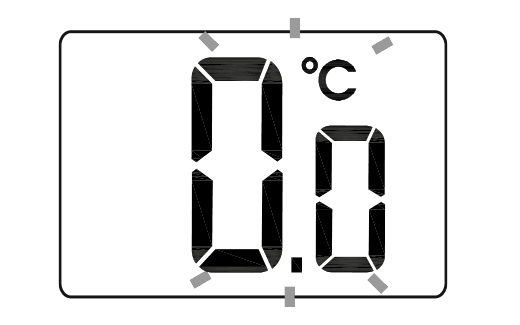
Confirm your selection with the buttond . The controller will move on to changing the next parameter.
Decrease (number of hours and degrees)
- The moon symbol ( ) will be visible on the displayT and the segment responsible for showing the number of hours (h) will go into edit mode and start flashing.
- Use theb andc to set the desired value in the range from 1 to 12 hours (factory setting – 6 hours).
Confirm with the buttond .
The controller will move on to changing the next parameter. - The temperature field on the display will enter edit mode and begin flashing. Again, use theb andc to set the desired temperature value. You can choose from 1°C to 10°C (factory setting – 3°C).
Confirm by pressing the buttond .
Failure to confirm with the buttond will automatically save the changes made and the controller will return to normal operation.
- The controller can be turned on or off at any time by briefly holding the buttond .
- The first press of any function key always turns on the backlight, and only the next press activates the key function.
- When programming any function, not pressing any button for 5 seconds is equivalent to pressing the buttond .
Device pairing
Even if you plan to control your devices exclusively using the SUPLA app, it is recommended to perform two-way pairing of AURATON devices.
-
First, pair your devices directly with each other – this will provide a backup form of communication in case the app crashes or there is no internet access.
-
Then pair the devices with the AURATON Box gateway to enable remote control via the SUPLA application on your phone, tablet or computer.
- On the AURATON Heat Monitor controller, press theb d orc d for 3 seconds until the transmission symbol (W ) lights up on the display. The AURATON Heat Monitor controller waits 30 seconds for pairing. After this time, it will automatically return to normal operation.
- Turn on pairing mode on the second device you want to pair (examples described below).
- Wait for confirmation from the other device
If an error occurs during pairing, repeat steps 1 and 2. If further errors occur, restore the AURATON Heat Monitor device to factory settings and try pairing the devices again..
Enabling pairing – Radiator Controller head
First, remove the battery cover (preferably with a flat screwdriver), wait for the motor to stop moving and press the black button located on the electronics board between the batteries 3 times (quickly).
Enabling pairing – Floor Heating Controller strip
Press the appropriate zone button for 3 seconds, wait for a single beep, then release the button. The zone's pairing status is indicated by the corresponding zone's indicator light flashing (0.5s/0.5s). If you intend to pair more than one zone with the AURATON Heat Monitor controller, briefly press the buttons for the remaining zones. Press the LINK button for 3 seconds, wait for a single beep, then release the button. The strip's pairing status is indicated by the LED next to the LINK button flashing (0.5s/0.5s).
Enabling pairing – Heater Controller
Pairing the AURATON Heater Controller is initiated by pressing the right pairing button – a single beep (D ) – and holding it for at least 3 seconds until the LED flashes green (double beep), then releasing the button. The Heater Controller unit waits 30 seconds for pairing. After this time, it will automatically return to normal operation.
Enabling pairing – AURATON Box gateway
Pairing the AURATON Heat Monitor regulator with the AURATON Box gateway can be done in two ways:
- On the AURATON Box gateway, briefly press the right "Auraton" pairing button (
 ) – the LED under the button will start flashing. Then, put the temperature controller into pairing mode.
or
- In Supla Cloud, enter the AURATON Box gateway channel and press the "Pair new devices or sensors" button – the LED under the right "Auraton" pairing button will start flashing. Then, put the temperature controller into pairing mode.
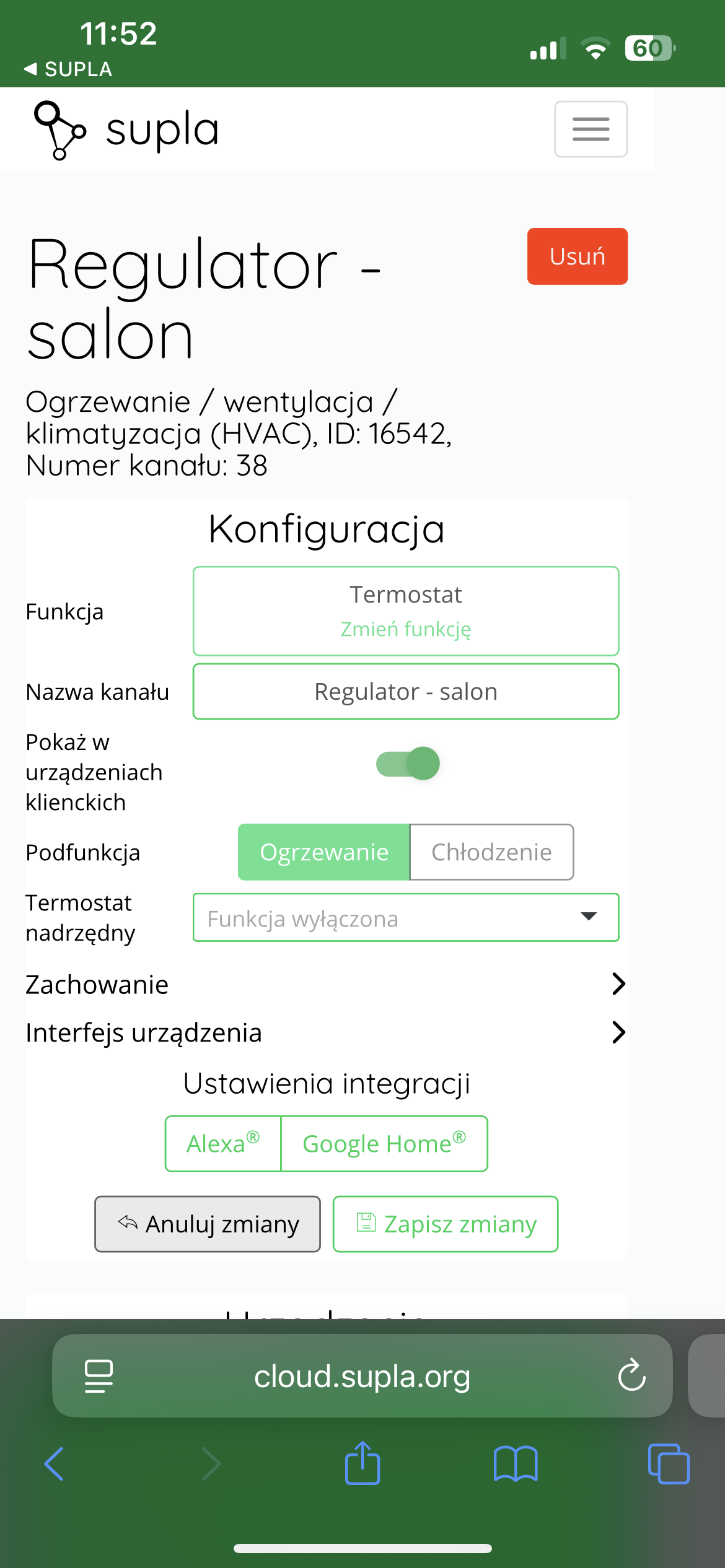
After pairing the AURATON Heat Monitor thermostat with the Auraton Box gateway, it is recommended to immediately name the thermostat in both channels (thermostat and thermometer) in Supla Cloud. By default, the device is named according to the model, e.g., "Heat Monitor," which can be confusing when using multiple devices of the same type. To facilitate identification, it is a good idea to give the thermostat a unique name immediately after pairing. To do this, edit the "Channel Name" and confirm the changes by clicking " Save Changes ." Repeat this process for all channels assigned to the device in Supla Cloud .
Cooperation with the SUPLA application
Cooperation of the AURATON Heat Monitor regulator with the AURATON Radiator Controller head in the SUPLA application
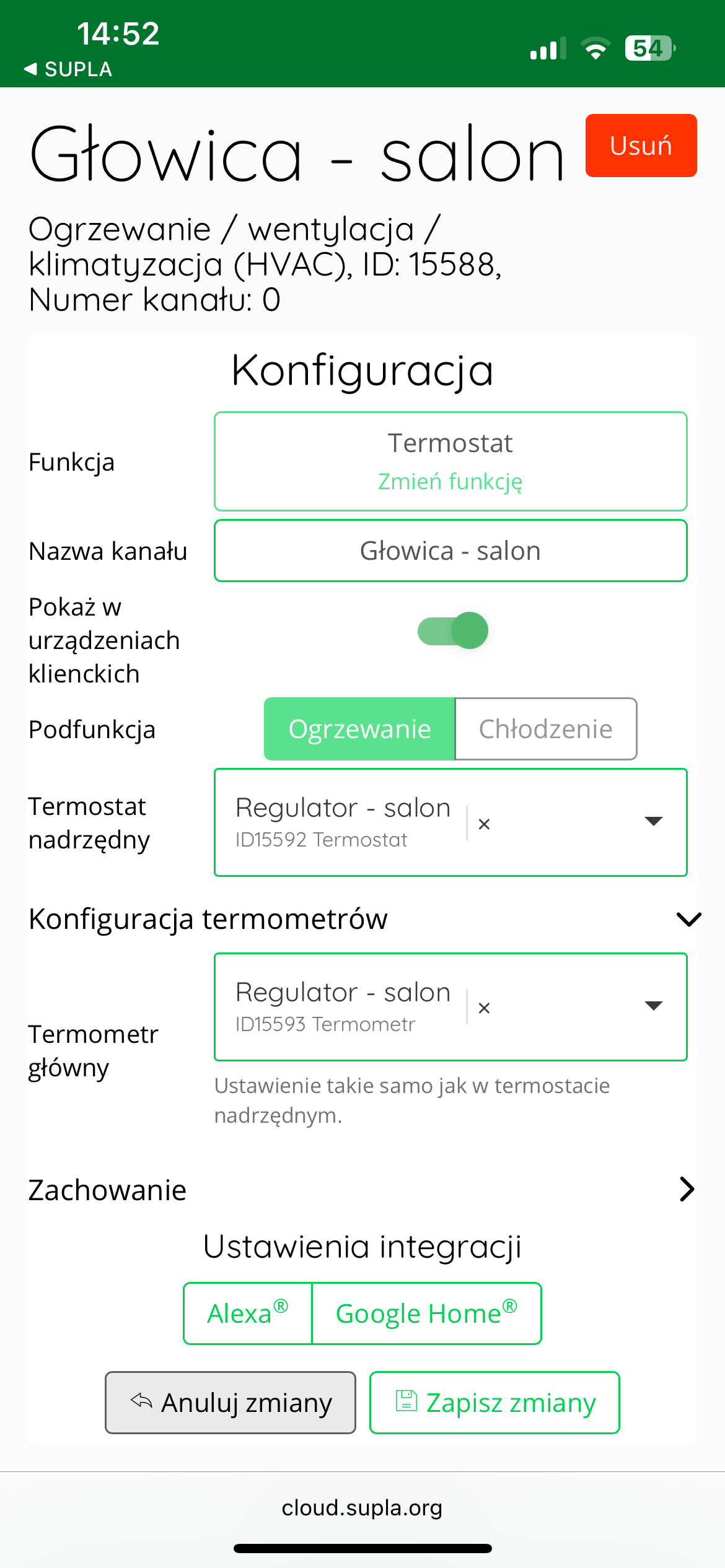
Goal: We have radiator heating in our home. We want AURATON Radiator Controller radiator heads to control the radiators based not on temperature measurements from their own sensors, but on those from the assigned AURATON Heat Monitor temperature controllers. We also want the heating to be controlled from the temperature controllers as well.
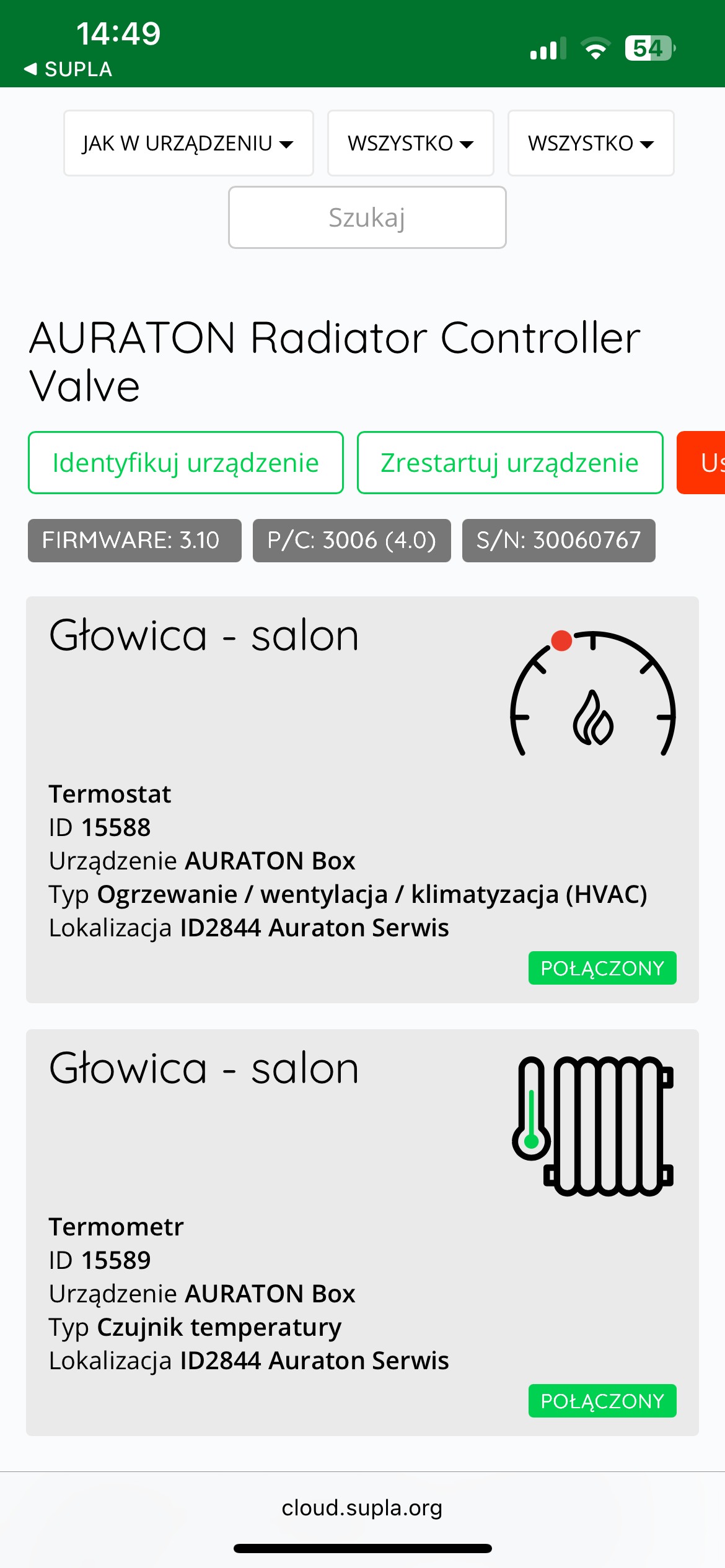
Solution: In the Supla app, select " Supla Cloud " from the Menu and log in. Then, enter the AURATON Box gateway channel. Then, enter the AURATON Radiator Controller thermostat channel (e.g., " Head - living room "Thermometer configuration" field , select the temperature controller assigned to the given head as the "Main thermometer" (e.g., "Regulator - living room" ). In the next step, select the same temperature controller as the " Master thermostat ." Finally, save everything by pressing the " Save changes " button. Proceed similarly for each pair of devices: AURATON Heat Monitor temperature controller + AURATON Radiator Controller radiator head. If one AURATON Heat Monitor temperature controller is to control more than one head in a room, select the same temperature controller as the "Main thermometer" and "Master thermostat" in the thermostat channels of the other controlled heads.
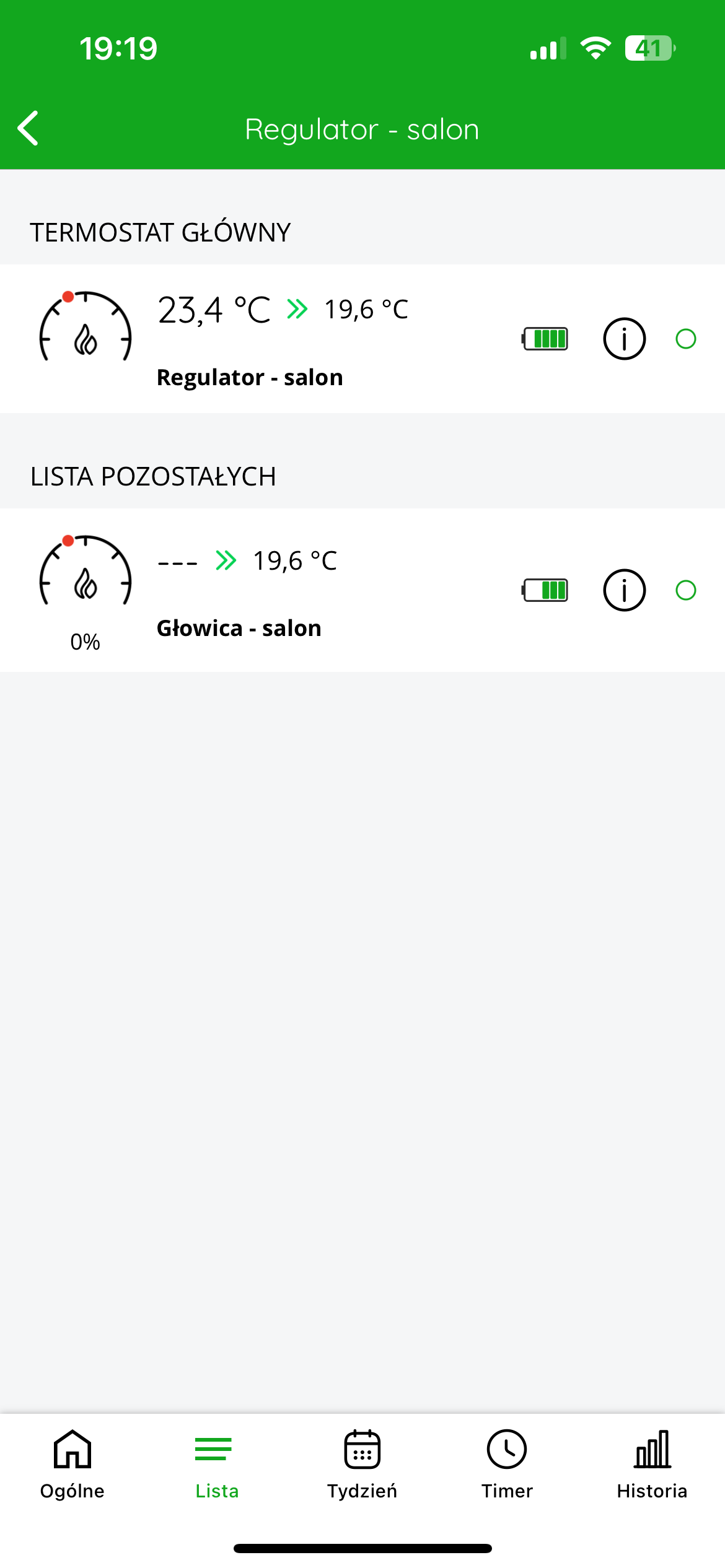
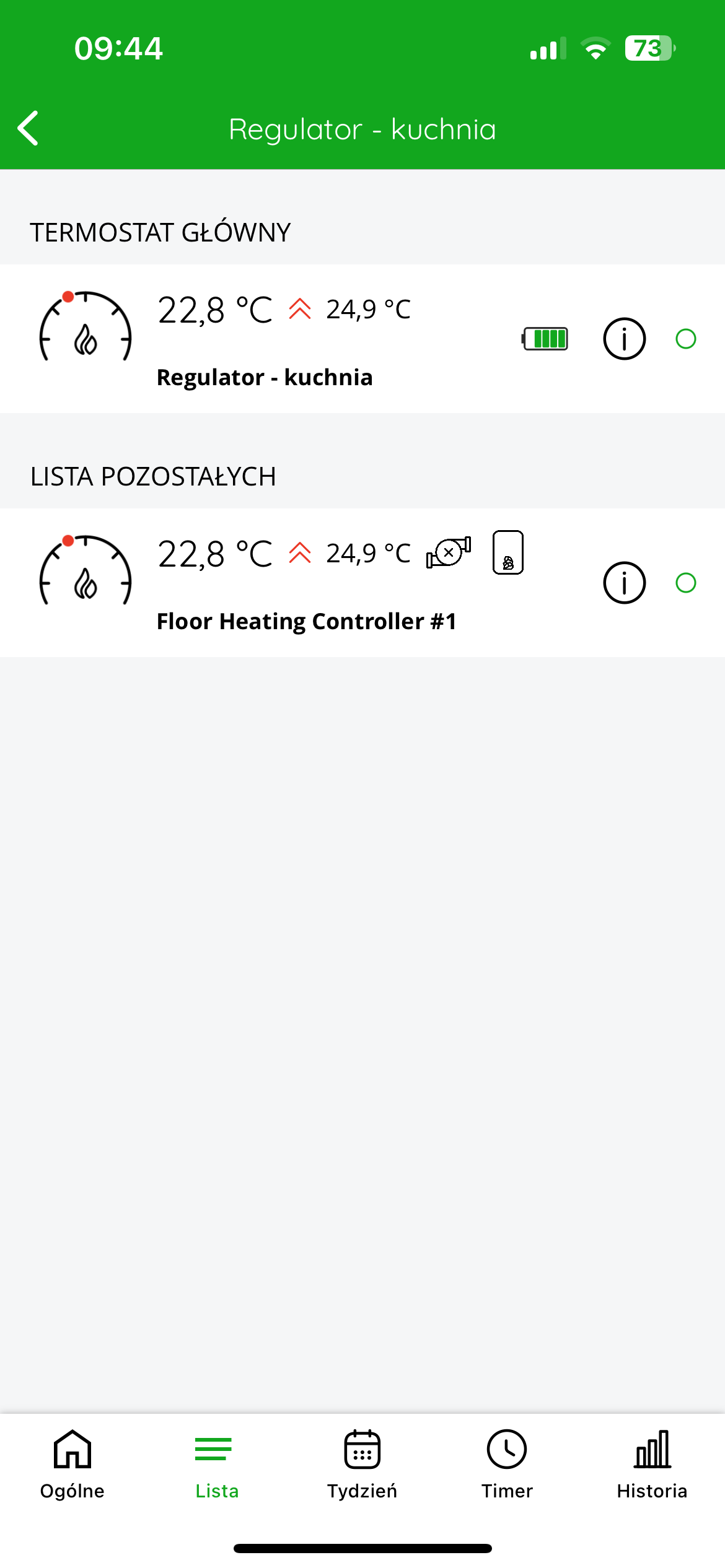
In the application, after entering the temperature controller, an additional "List" tab will appear at the bottom of the screen, after clicking on which you can see which devices are connected to each other.
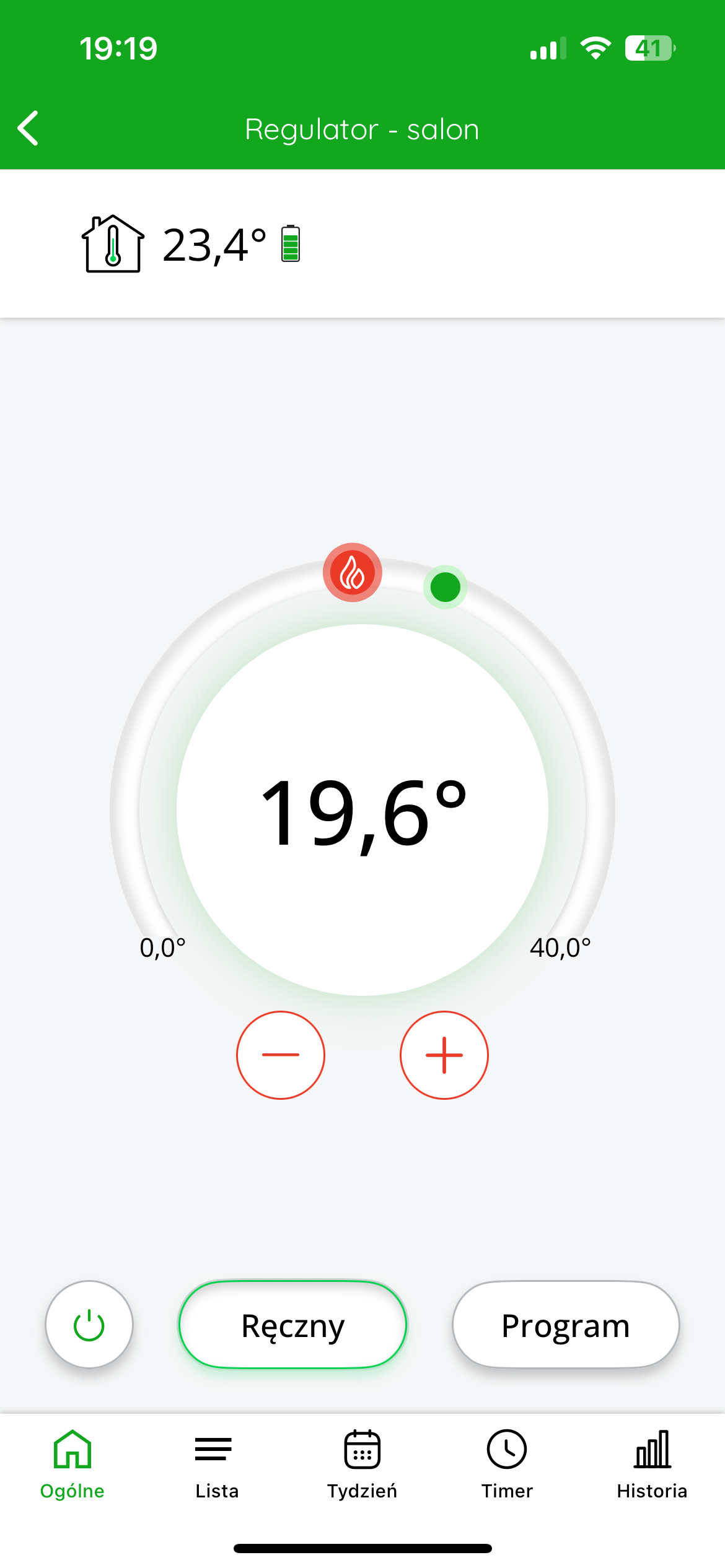
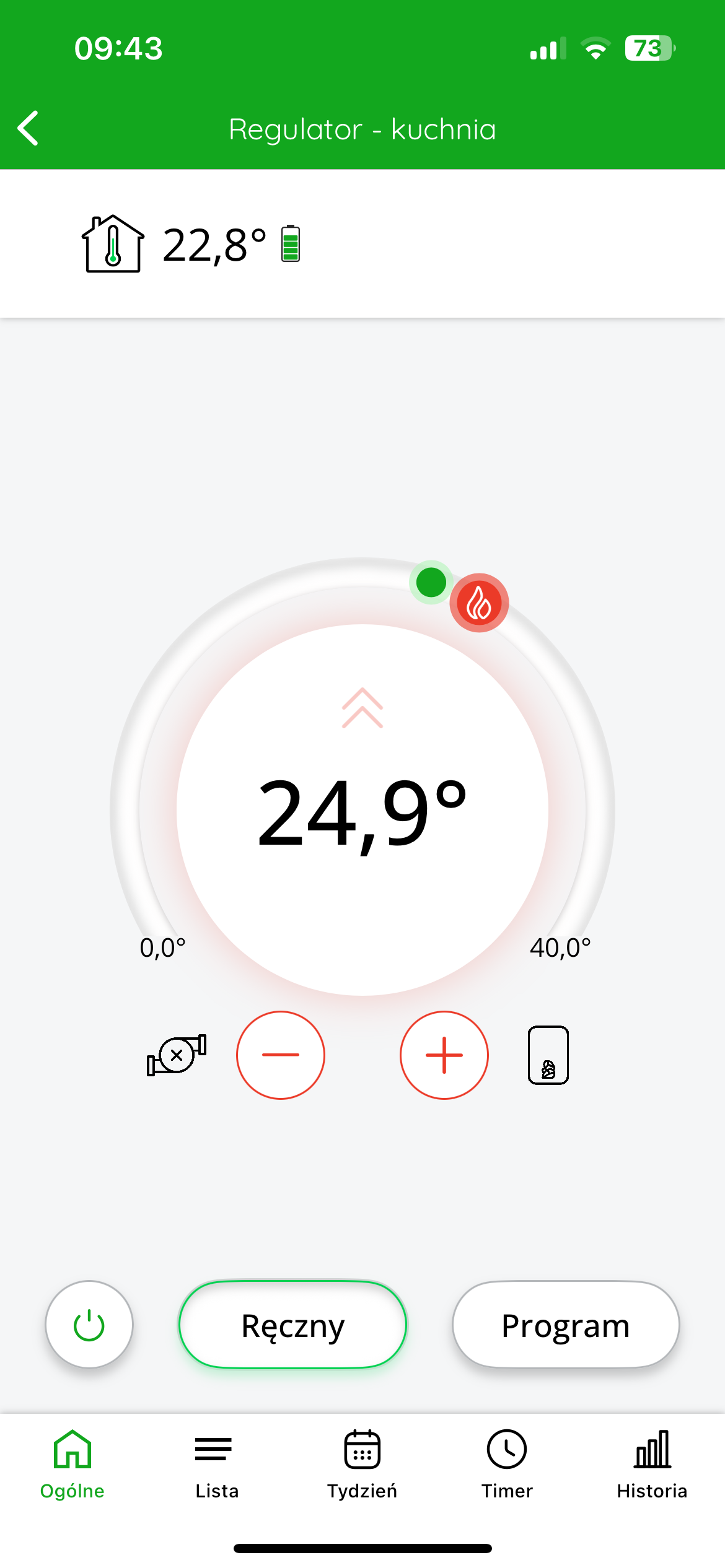
The top left of the display shows the temperature measured by the controller. The target temperature is displayed in the center of the screen.
You can roughly adjust the target temperature by moving the red slider. For more precise settings, use the "+" or "-" buttons.
Cooperation of the AURATON Heat Monitor regulator with the zone(s) of the AURATON Floor Heating Controller wireless underfloor heating strip in the SUPLA application
Goal: We have underfloor heating in our home. We want individual zones of the AURATON Floor Heating Controller to be controlled based on temperature measurements from the assigned AURATON Heat Monitor temperature controllers. We also want the heating to be controlled from the temperature controllers as well.
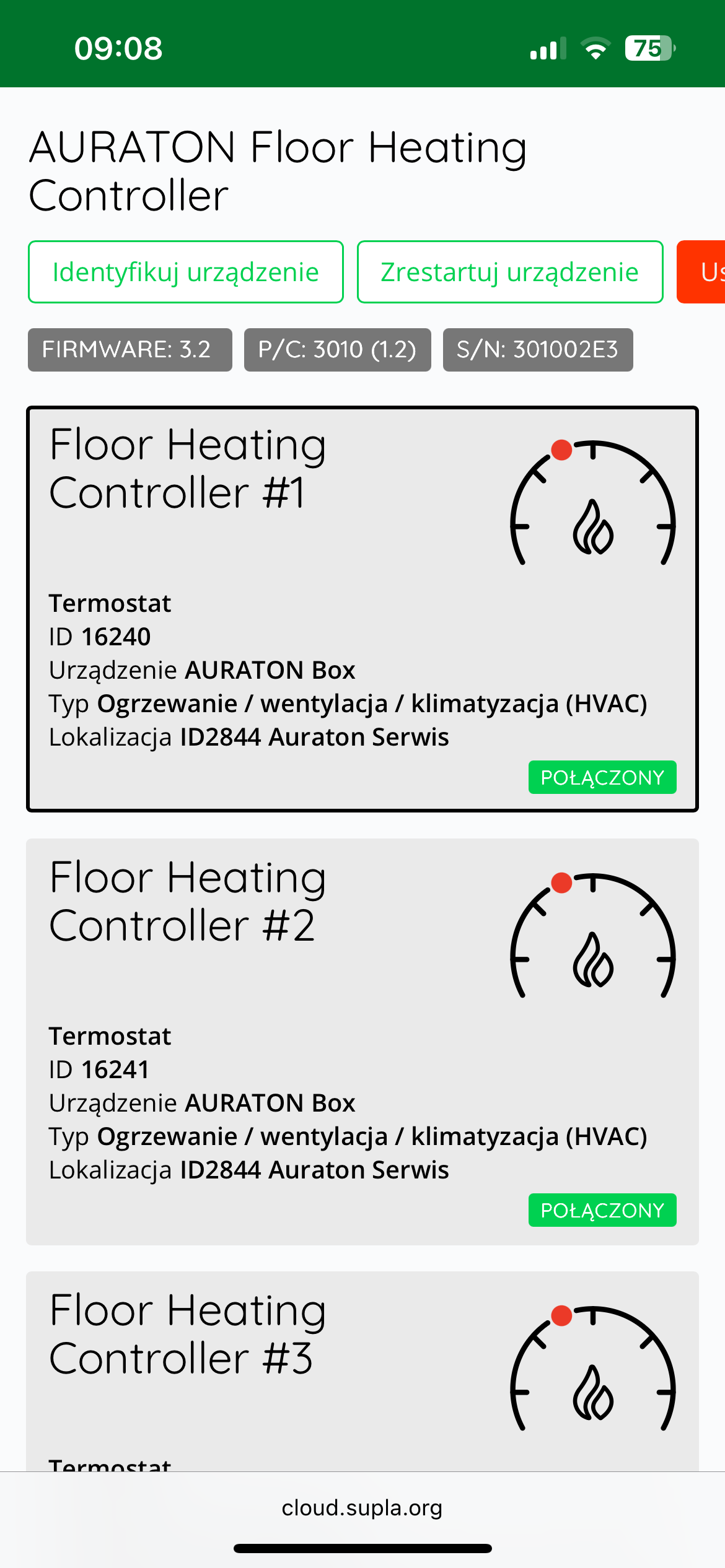
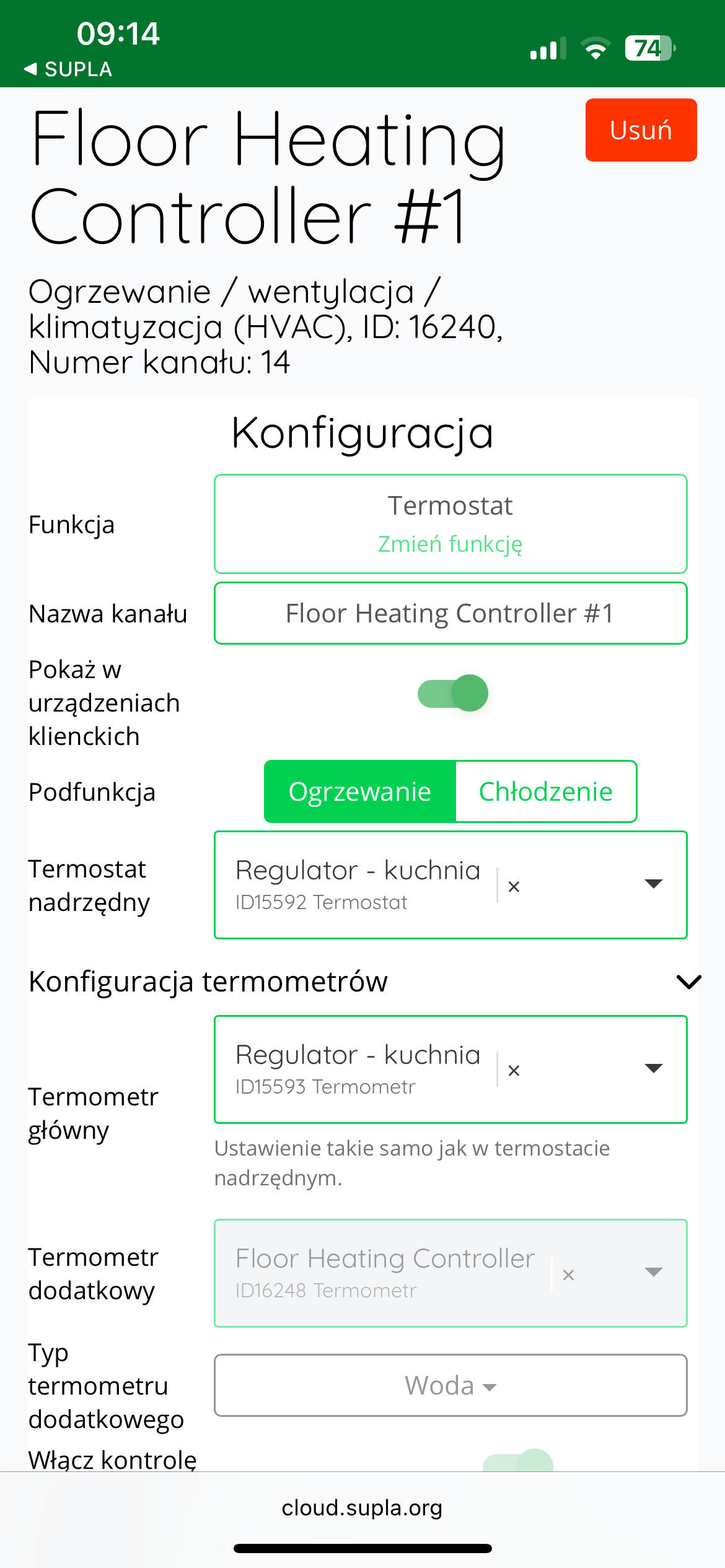
Solution: In the Supla app, select " Supla Cloud " from the Menu and log in. Then, enter the AURATON Box gateway channel. Then, enter the thermostat channel for the given zone of the AURATON Floor Heating Controller. In the "Thermometer Configuration" , select the temperature controller assigned to the given zone (e.g., "Regulator – Kitchen" as the "Master Thermostat ." In the next step, select the same temperature controller as the " Master Thermostat ." Finally, save everything by pressing the " Save Changes " button. Proceed in the same way for each pair of devices: the AURATON Heat Monitor temperature controller + the AURATON Floor Heating Controller zone. If one AURATON Heat Monitor temperature controller is to control more than one zone in a room, select the same temperature controller as the "Master Thermostat" and "Master Thermostat" in the thermostat channels of the remaining controlled zones of the AURATON Floor Heating Controller.
In the application, after entering the temperature controller, an additional "List" tab will appear at the bottom of the screen, after clicking on which you can see which devices are connected to each other.
The top left of the display shows the temperature measured by the controller. The target temperature is displayed in the center of the screen.
You can roughly adjust the target temperature by moving the red slider. For more precise settings, use the "+" or "-" buttons.
Cooperation of the AURATON Heat Monitor regulator with the AURATON Heater Controller heating device controller in the SUPLA application
Goal: We have a simple smart home system consisting of a single central AURATON Heat Monitor controller and an AURATON Heater Controller. We want the controller to control the device that turns on the heating in the home. When the current temperature on the AURATON Heat Monitor controller drops below the target temperature by the hysteresis value, the AURATON Heater Controller will turn on the furnace. When the current temperature on the controller exceeds the target temperature by the hysteresis value, the controller will turn off the furnace.
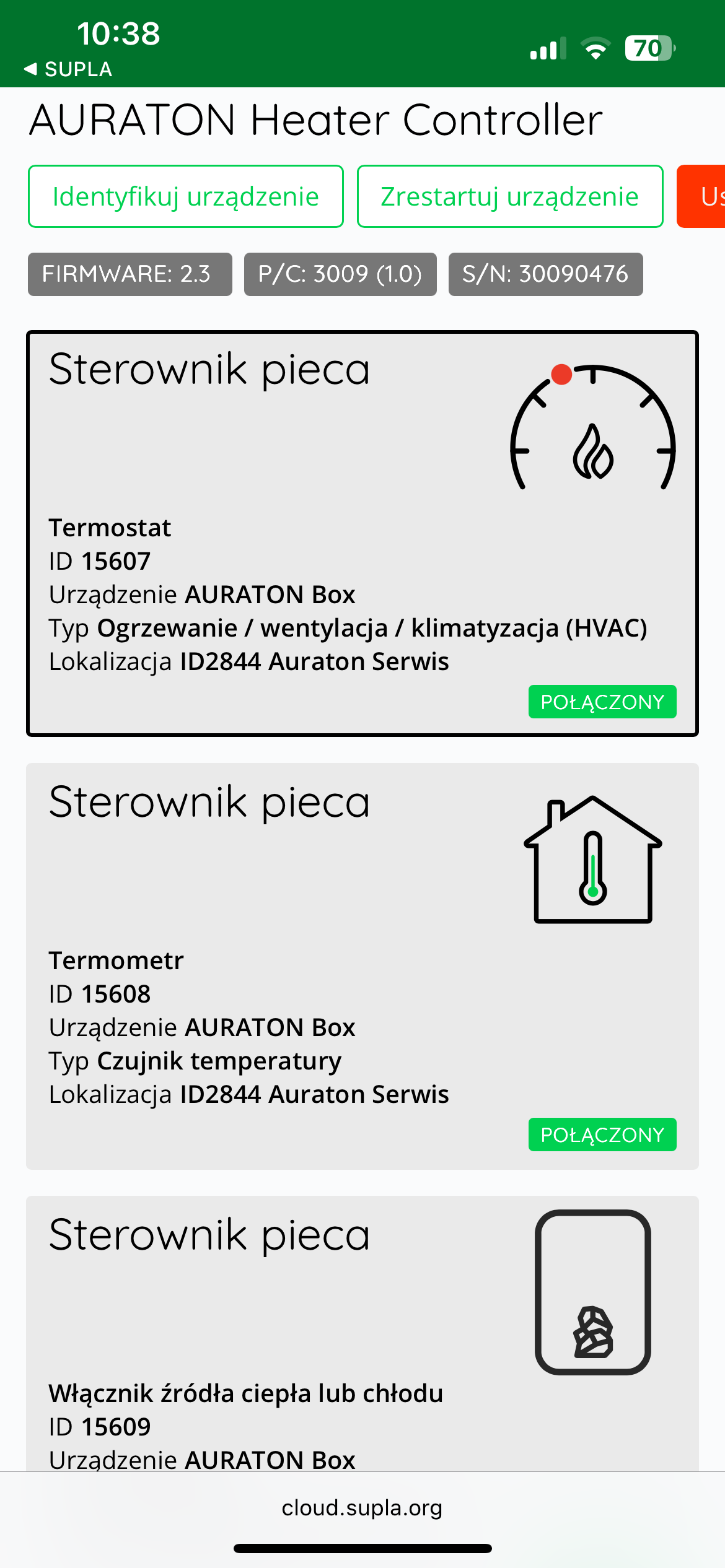
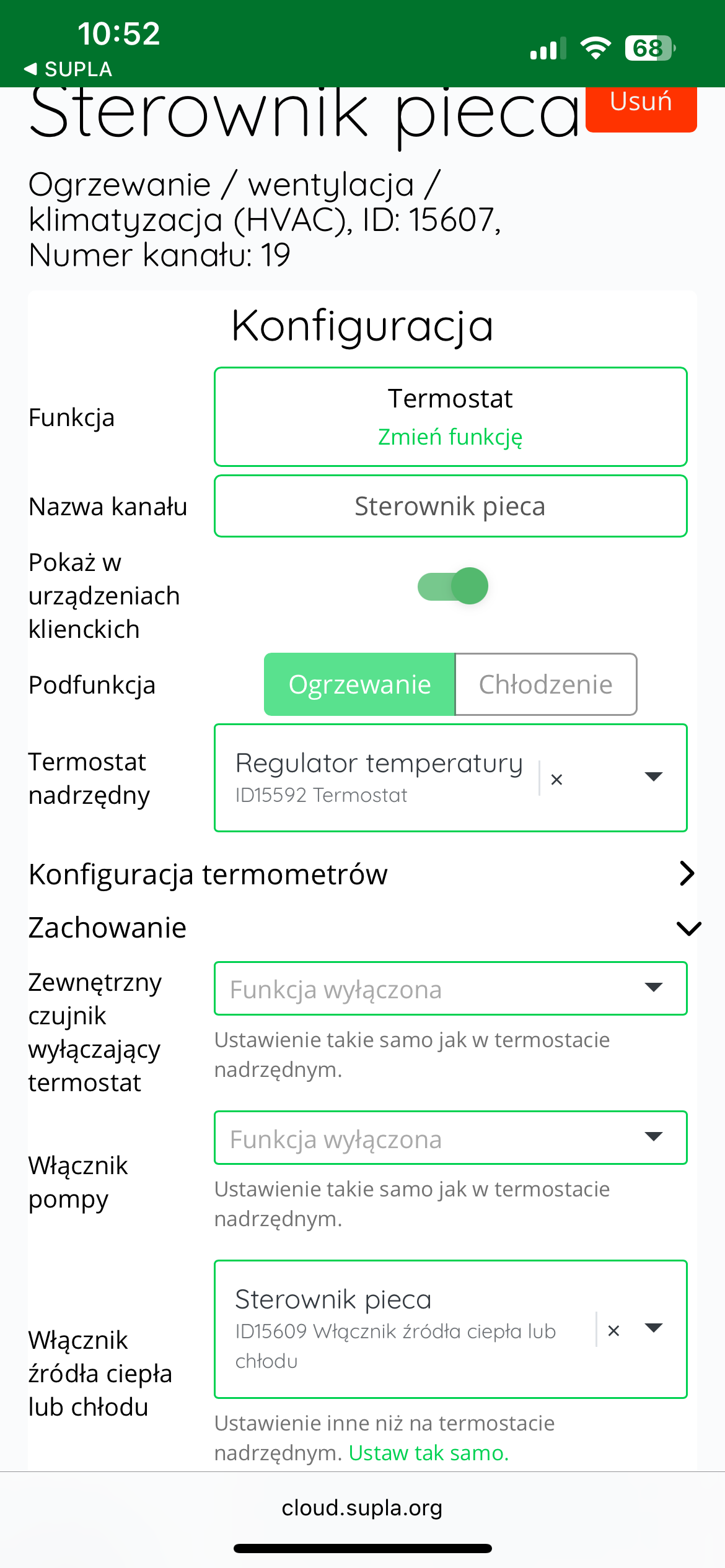
Solution: In the Supla app, select " Supla Cloud " from the menu and log in. Then, enter the AURATON Box gateway channel. Then, enter the heating device controller's thermostat channel (e.g., "Furnace controller"). In the "Thermometer configuration" , select our central temperature controller (e.g., "Temperature controller" as the "Main thermometer." select the same temperature controller as the " Master thermostat
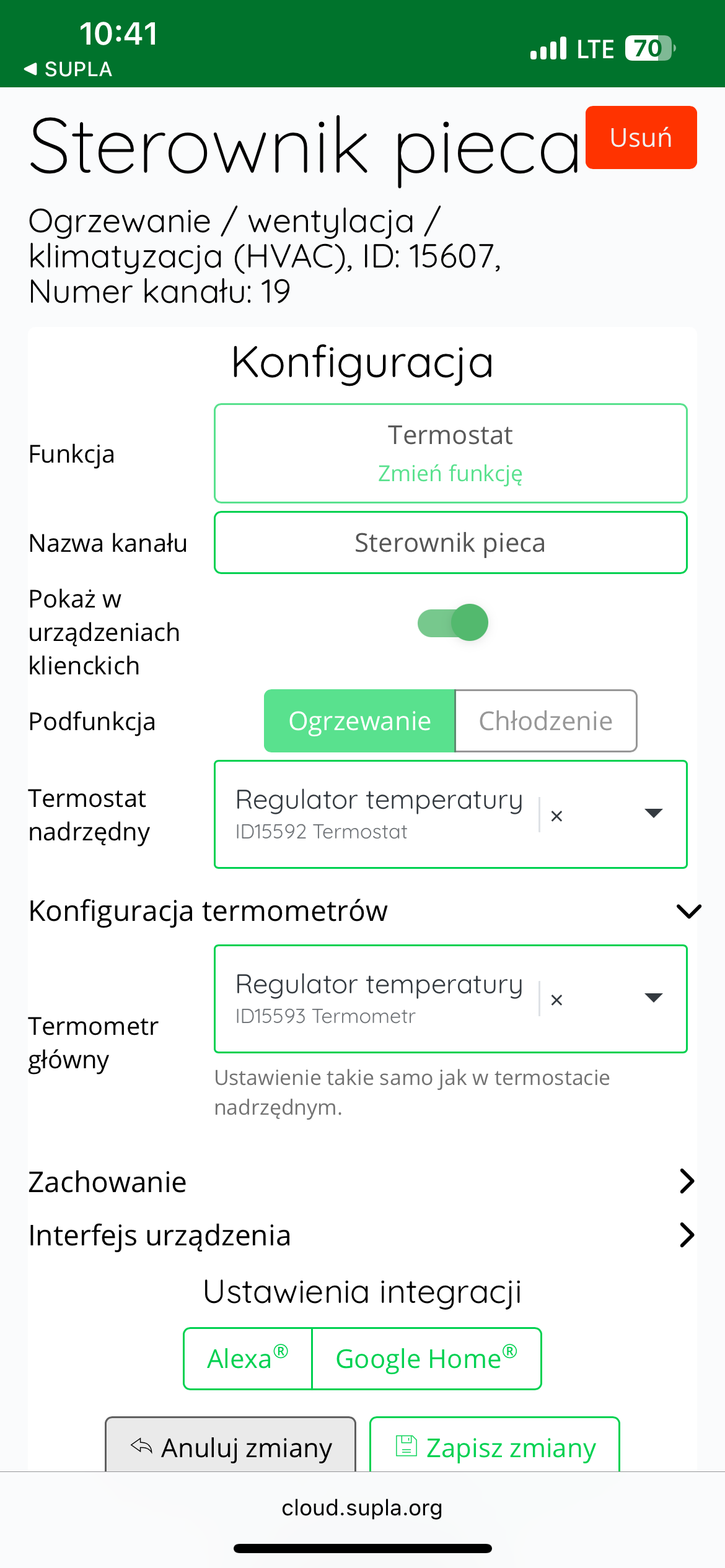
Additionally, in the "Behavior" , in the "Heating or cooling source switch" , select the device that will turn on the heating, i.e., the AURATON Heater Controller, here called "Furnace controller." Finally, save everything by pressing the " Save changes " button.
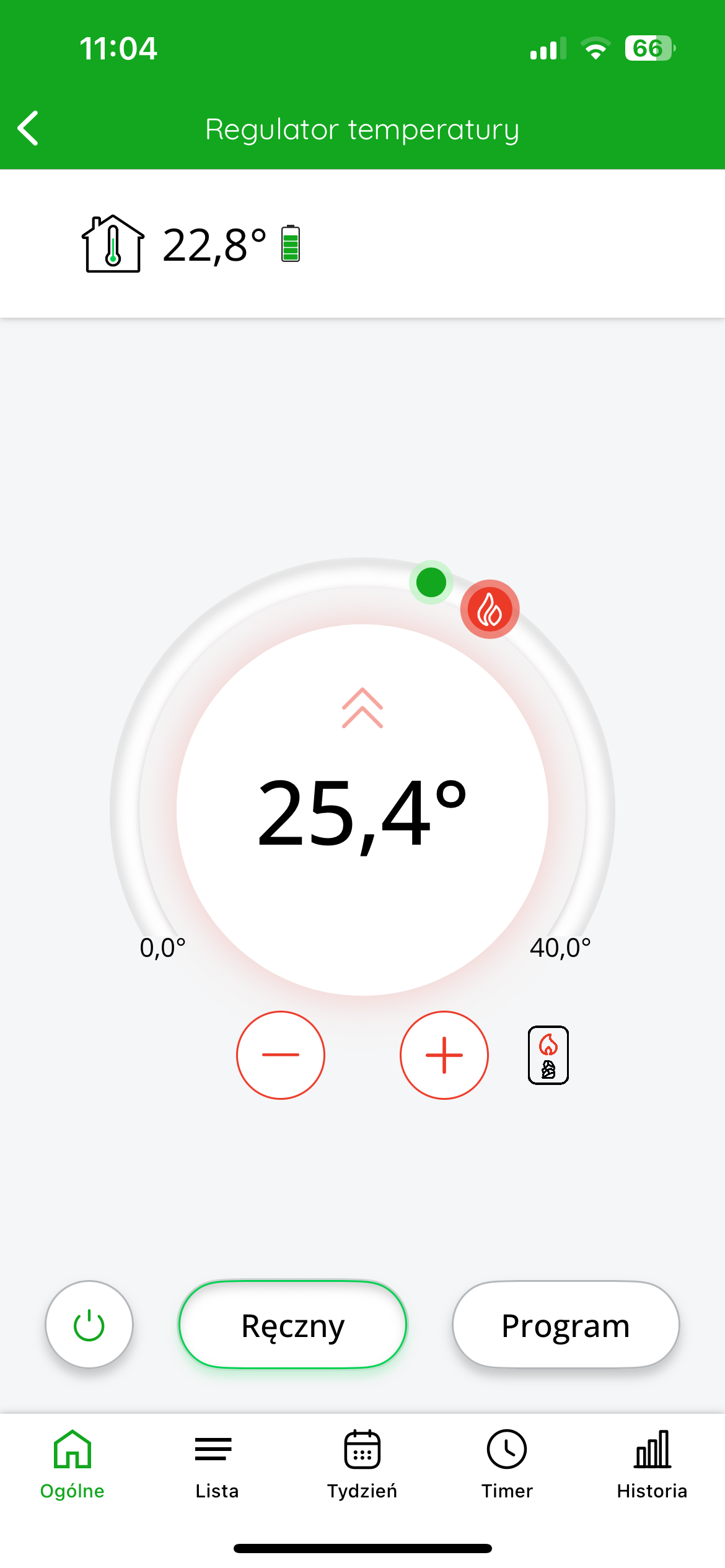
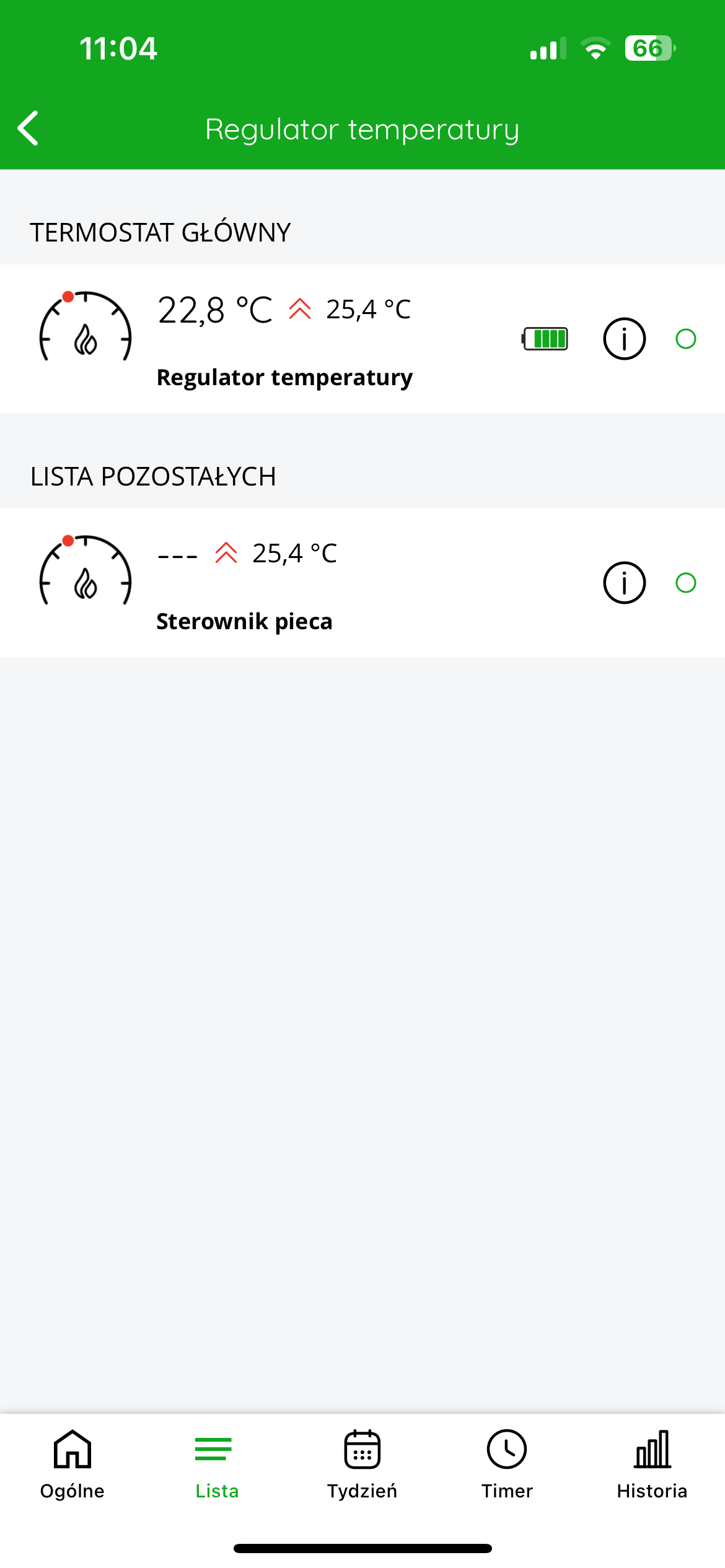
In the application, after entering the temperature controller, an additional "List" tab will appear at the bottom of the screen, after clicking on which you can see which devices are connected to each other.
The top left of the display shows the temperature measured by the controller. The target temperature is displayed in the center of the screen.
You can roughly adjust the target temperature by moving the red slider. For more precise settings, use the "+" or "-" buttons.
Other configuration settings in SUPLA Cloud
Hysteresis value
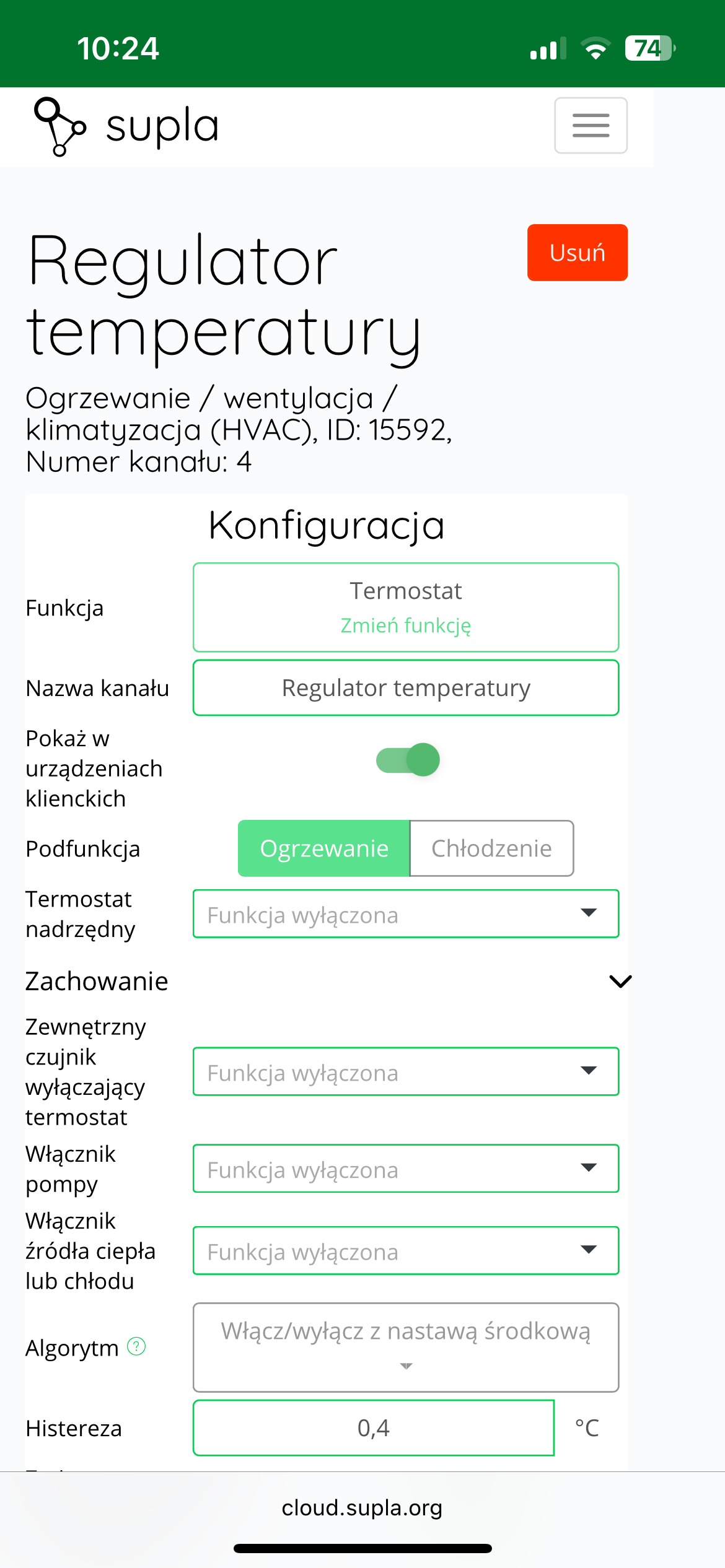
The factory hysteresis value is set to 0.4 (+/- 0.2°C). You can edit it in Supla Cloud, in the thermostat channel, in the "Behavior" – "Hysteresis" in the range 0.2 – 2 (+/- 0.1°C – +/- 1°C). After making the change, click the "Save changes" button.
The hysteresis value in the AURATON Heat Monitor regulator should match the hysteresis value in the AURATON Heater Controller.
Button lock and hotel mode
SUPLA Cloud allows you to completely lock the device's buttons to prevent unauthorized access. This feature can be enabled in the thermostat channel, in the "Device Interface" tab. , select "Locked" in the "Lock Type" Save the change by clicking "Save Changes."
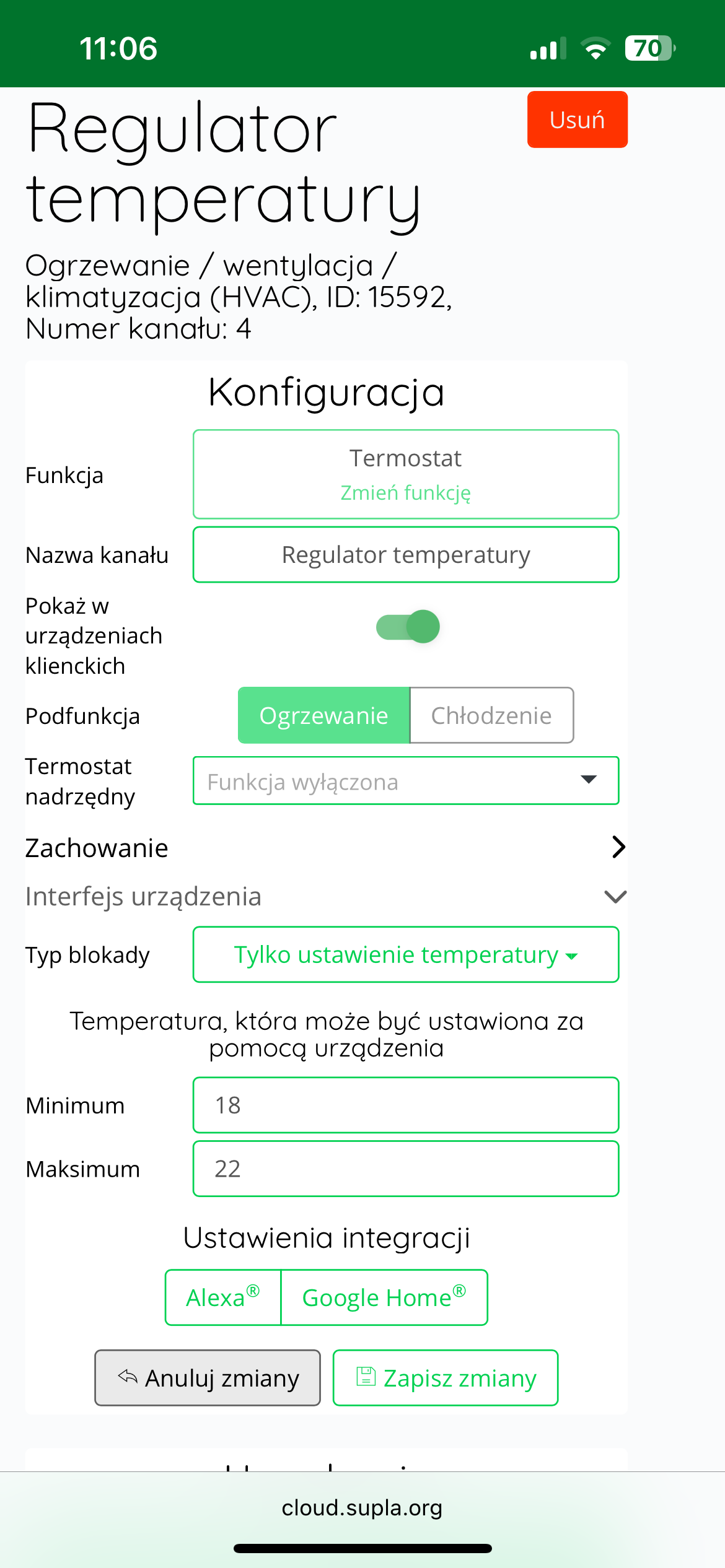
SUPLA Cloud also allows you to limit the thermostat's temperature settings from the device itself – hotel mode . To do this, select "Temperature setting only" "Device Interface" in the "Lock Type" Next, enter two temperatures within which the temperature can be adjusted from the device (e.g., 18°C and 22°C) in the "Minimum" and "Maximum" . Then, save the changes by clicking the "Save changes" button.
Calibration of temperature readings
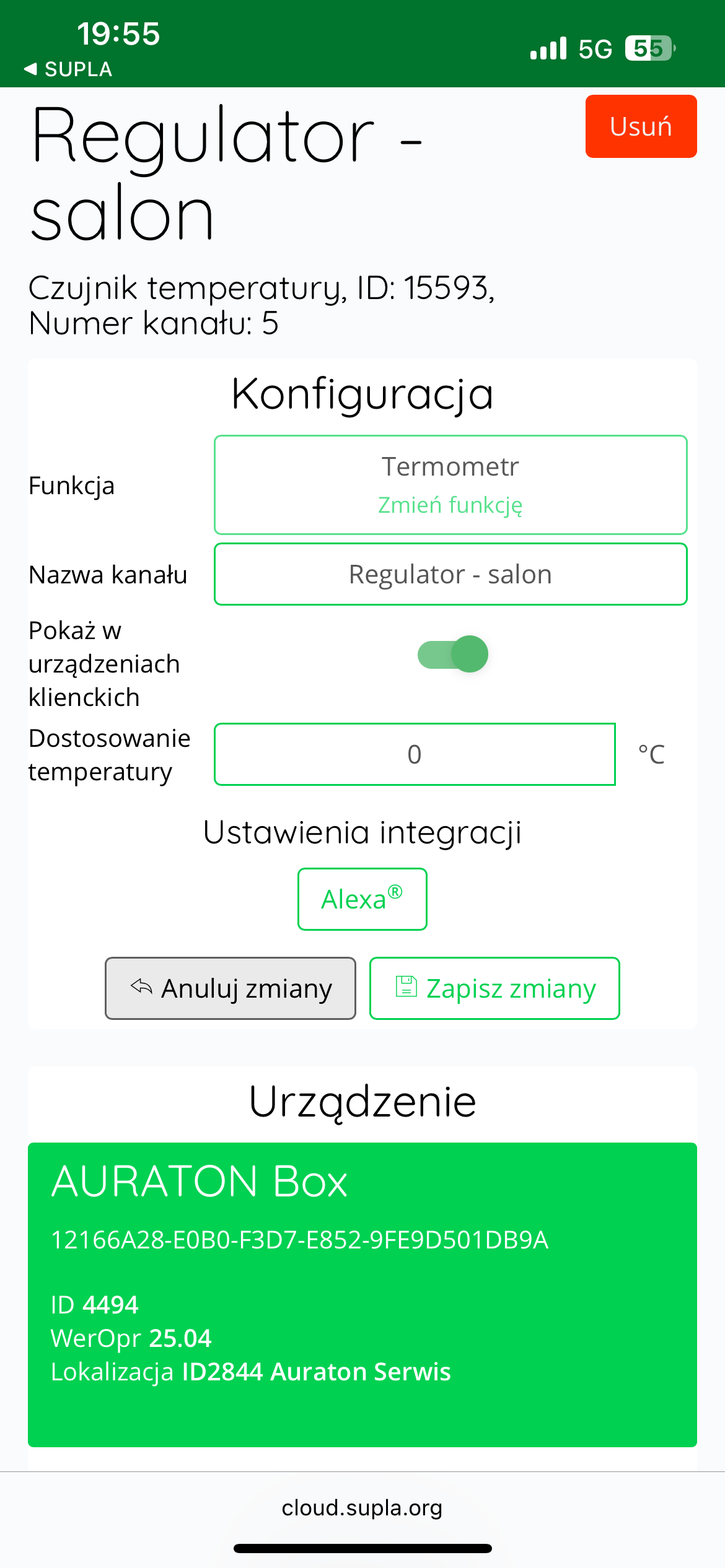
If the temperature read by the internal sensor of the AURATON Heat Monitor regulator differs from the actual temperature in the room, the user can calibrate the temperature readings .
To adjust the reading, log in to SUPLA Cloud and then go to the AURATON Box gateway channel .
The next step is to enter the thermometer channel of the AURATON Heat Monitor regulator (e.g. "Regulator – living room").
In the "Temperature Adjustment" , the user can enter a correction value between -3.0°C and +3.0°C , with an accuracy of 0.1°C . A positive value will raise the displayed temperature, while a negative value will lower it.
After making the appropriate correction, click the "Save changes" to confirm the setting.
Technical data
| Operating temperature range: | 0 – 45°C |
| Temperature measurement range: | 0 – 45°C (measurement error +/- 1°C) |
| Temperature control range: | 0 – 40°C |
| Hysteresis: | +/- 0.1°C – +/- 1°C (default +/- 0.2°C) |
| Temperature setting accuracy: | 0.1°C |
| Temperature measurement resolution: | ±0.1°C |
| Default temperature setting: | 21°C |
| Additional features: | FrostGuard/Hotel Mode |
| Duty cycle: | daily |
| Operating status check: | LCD |
| Maximum number of paired devices: | 3 |
| Power supply |
2x AAA 1.5V alkaline batteries |
| Cooperation with the internet gateway | AURATON Box |
| Degree of protection | IP20 |
| Radio frequency: | 868.150MHz 868.450MHz 869.800MHz |
| Radio signal strength: | 11 dBm |
| Radio receiver category: | 2 |
| Range of action: | in a typical building, with standard wall construction – up to 30 m in open space – up to 300 m |
Disposing of the device
O
Devices are marked with a crossed-out waste bin symbol. In accordance with European Directive 2012/19/EU and the Waste Electrical and Electronic Equipment Act, this marking indicates that this equipment, after its useful life, must not be disposed of with other household waste.
Users are obligated to dispose of it at a collection point for used electrical and electronic equipment.