

User manual version 1.2
How to start?
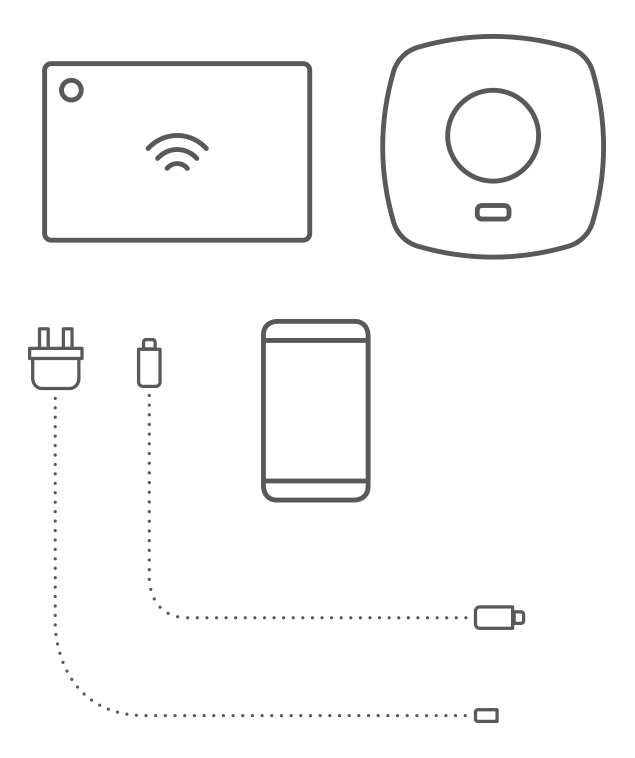
What you will need:
- AURATON Pulse
- USB power supply (included)
- USB-Micro USB cable (included)
- Ethernet cable (included)
- Router with internet access and Ethernet port
- Power socket for AURATON Pulse
- Phone/tablet with Android/iOS and internet access
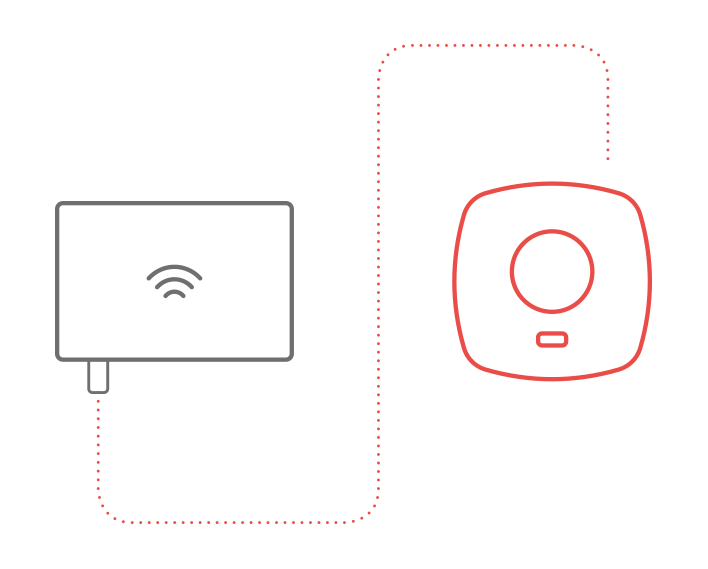
- Connect the included network cable to any available LAN port on your router. Connect the other end to the AURATON Pulse control panel.
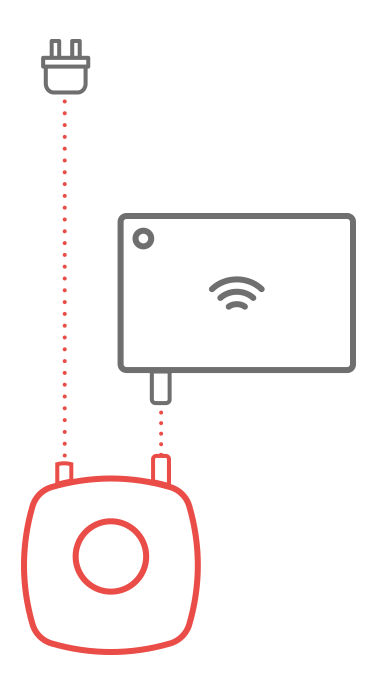
- Connect the AURATON Pulse to the power supply using a Micro USB-to-USB cable. Plug the power supply into a power outlet to power the control panel. After a while, the LED on the control panel should turn green, indicating it's ready for operation.
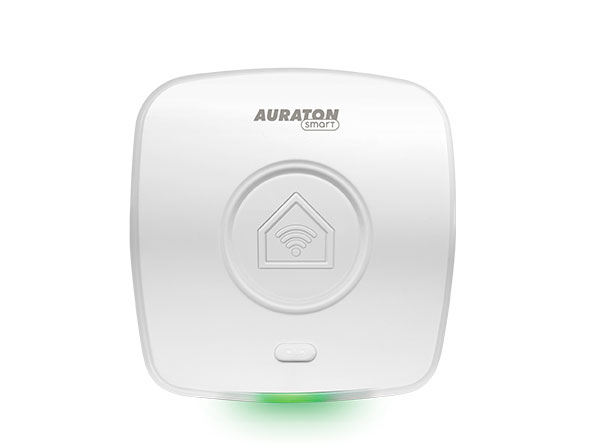
- Once the control panel is properly connected, it can be registered on multiple smartphones and tablets by downloading the AURATON Smart app from the App Store or Google Play. The app will allow you to control AURATON Smart devices in your home. The app's user manual is provided in a separate document.


Tips
Stay in control during your absence
Using the dedicated AURATON Smart app, you can control Smart series devices even when you're away from home. You can also program device operation, create scenes and scenarios, and set on/off times.
Expand your system
You can expand your system at any time by adding additional devices from the AURATON Smart series, and using the app, your loved ones will also have control over your home.
Select the installation location of the AURATON Pulse control unit
The AURATON Pulse control unit covers the area of a typical home. It has a greater range than standard WiFi. To achieve the best possible performance (range), the control unit should not be placed next to metal surfaces (e.g., radiators), water tanks (e.g., boilers), or reinforced load-bearing walls. The control unit should be placed as high as possible (e.g., on the first floor of the house) to ensure the best possible range.
Default LED indication
 |
Steady green: operating mode |
 |
Flashing green: transmitting/receiving |
 |
Flashing green/amber: Pairing mode |
 |
Solid red: no connection to the server |
 |
Flashing red: Cable or router problem |
Factory reset
Note: The following procedure permanently deletes all data, device settings, and user accounts.
To restore the factory settings of AURATON Pulse, follow these steps:
- Disconnect AURATON Pulse from the power supply.
- Press and hold the button on the case
- Connect the power cable.
- Wait a few seconds until the LED turns orange, then release the button and press it briefly again.
- Wait until the LED turns green.
Technical data
| Operating temperature range: | 0 – 45°C |
| Operating status check: | RGB LED |
| Maximum number of paired devices: | 150 |
| Power supply: | Micro USB 5V DC, 3W |
| Radio frequency: | 868.300 MHz 11 dBm ERP 868.150 MHz 11 dBm ERP 868.450 MHz 11 dBm ERP 869.800 MHz 11 dBm ERP |
| Radio receiver category: | 2 |
| Degree of protection: | IP20 |
| Range of action: | in a typical building, with standard wall construction – up to 30 m in open space – up to 300 m |
Disposing of the device
O
Devices are marked with a crossed-out waste bin symbol. In accordance with European Directive 2012/19/EU and the Waste Electrical and Electronic Equipment Act, this marking indicates that this equipment, after its useful life, must not be disposed of with other household waste.
Users are obligated to dispose of it at a collection point for used electrical and electronic equipment.